
Screen recorder for team projects
Keep projects moving with clear video updates. Record product demos, decisions, and feedback in minutes, then share them with one link.
“Jumpshare makes it significantly easier for me to communicate with my web developers.”

Will Tams
Creative Director at The Collective Spark

Product managers use Jumpshare to
-

Build momentum for launches with recorded demos
-
Collaborate across different teams
-
Communicate efficiently across team projects
-
Replace status meetings with async video updates
-
Create engaging product announcements
-
Give clear video feedback tied to the work
Set a clear direction with async video
Replace routine status meetings with concise video updates. Record once, share the link, and let teammates catch up when it suits them.
Communicate asynchronously
Record your screen and webcam together, then share one link in Slack, email, or your project tracker.
Ensure clarity
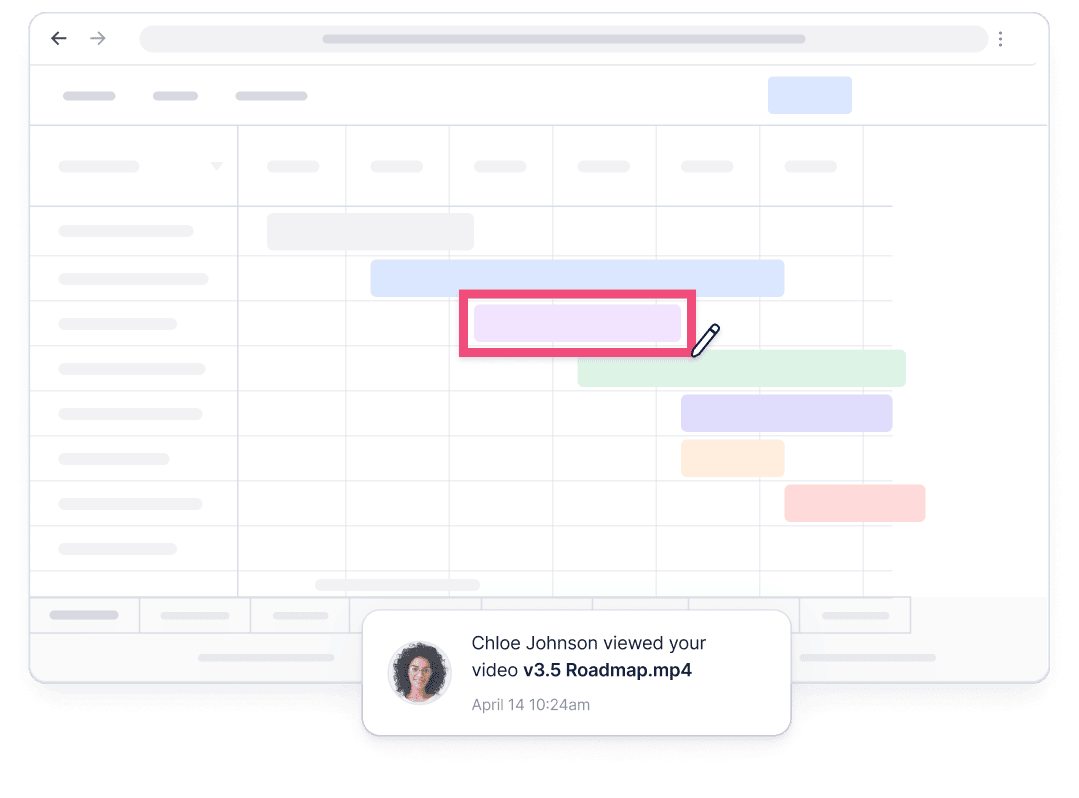
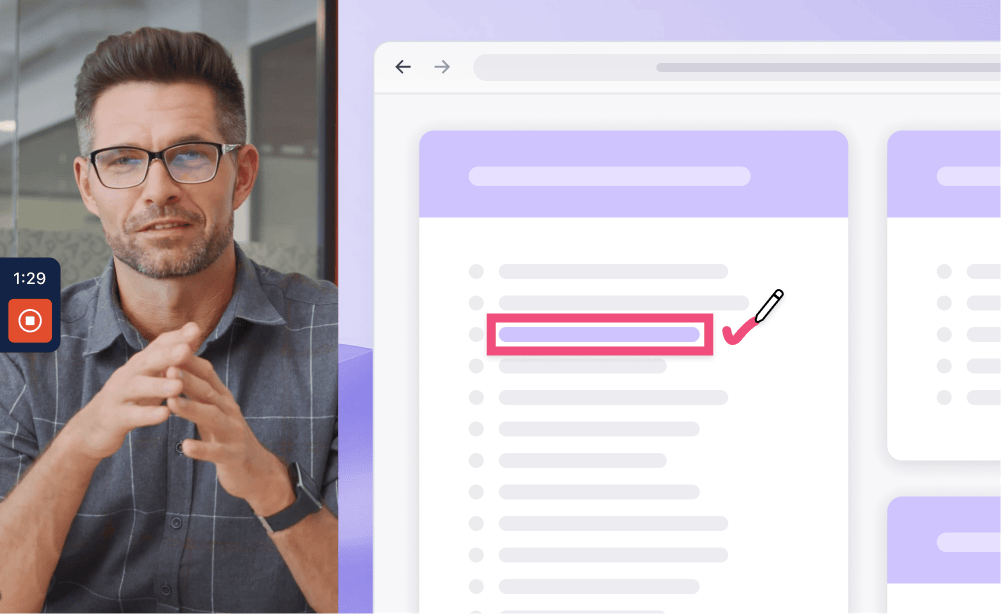
Draw on your screen while you talk. Point at the exact button, flow, or line you mean.
Record product demos that build support
Demo features before and after launch
Record product demos in up to 4K with no watermark, from early prototypes to launch-ready features.
Elevate product announcements
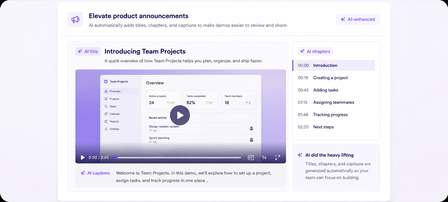
Let AI add titles, chapters, and captions automatically, so each demo is easier to review and ready to share sooner.
Resolve blockers faster with quick videos
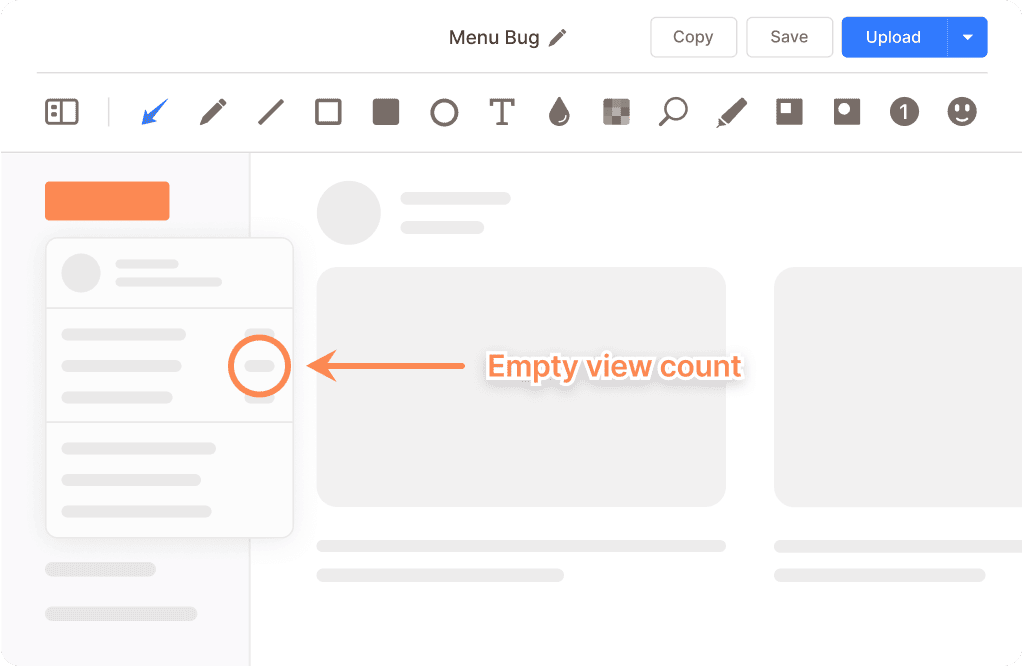
Record the issue as it happens, add context with your voice, and paste the link into the ticket.
Show the issue clearly
Record bugs and blockers as they happen. Circle the problem on screen so nobody has to guess what went wrong.
Keep every issue actionable
Paste the link in the ticket and move on. Your team can scrub to the exact second things broke.
Streamline conversations between teams
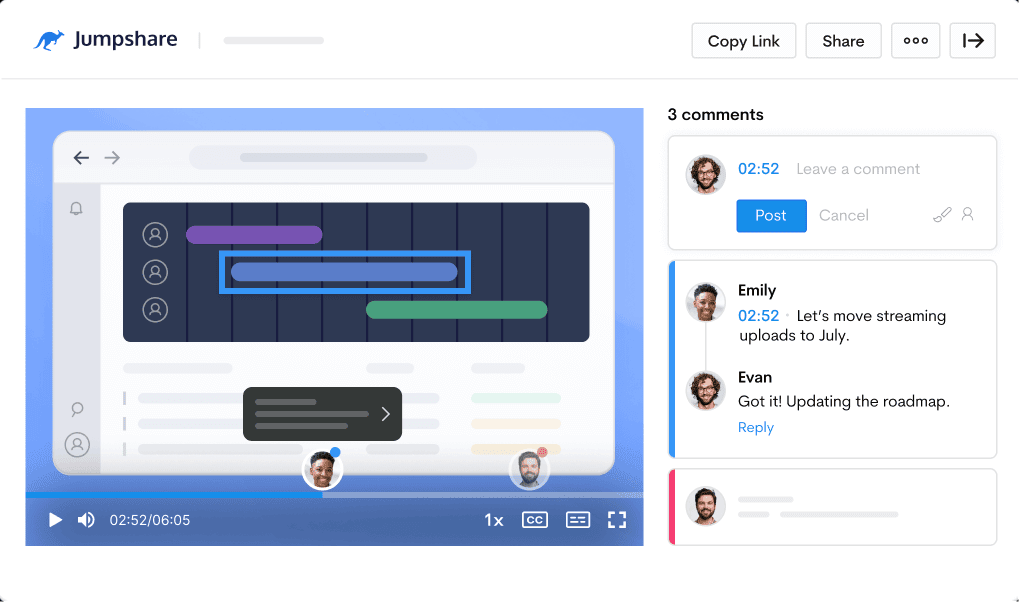
Keep every recording and its discussion in one place. When someone asks "what did we decide?", the answer is under the video.
Collaborate with ease
Tag teammates to pull them into any discussion. They get the video and the context together.
Communicate visually
Leave timestamped comments and video markups. Your feedback points at the exact moment it refers to.

Prepare every update faster with AI
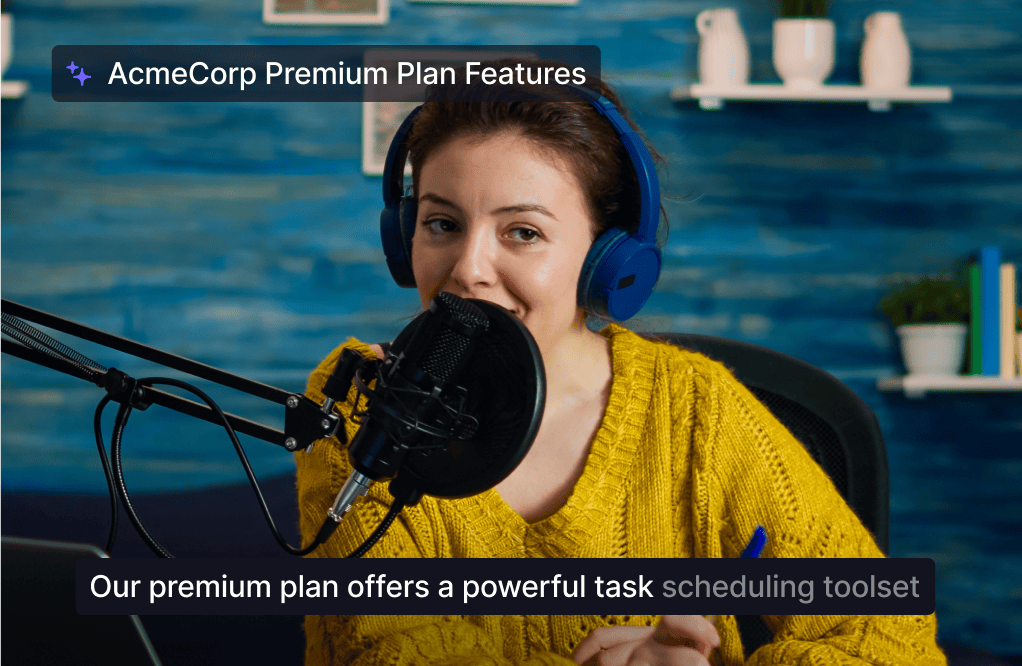
Jumpshare AI automatically prepares each recording for sharing, reducing the time spent on manual editing.
Make every video accessible
Accurate captions and transcriptions in over 50 languages keep everyone in the loop, in any time zone.
Instantly ready to share
Every recording gets an automatic title, summary, and chapters, so updates look polished without a minute of editing.
Everything teams need to keep projects moving
Record updates, share demos, and keep feedback connected to the work in one place.
Screen Recording
Record your screen and webcam at the same time. Draw over your screen to highlight areas of interest as you record.
Video Markups
Add annotations to any point in a video along with a comment to explain your point with clarity.
Timestamped Comments
Keep feedback tied to the exact moment in a recording, so team projects never lose context in long chat threads.
Trusted by thousands of product managers

4.9/5 based on our user reviews

Jumpshare has smoothed out communication in my workplace drastically. Not only is it faster for me to send a video, but there are fewer mistakes so work gets done faster.
Blake Beus
Web Application Security at JPMorgan Chase & Co

Frequently Asked Questions
How do project managers use a screen recorder? +
Project managers use a screen recorder to record product demos, walk through specs and prototypes, give visual feedback on builds, and send async video updates that replace status meetings. Instead of writing long documents or scheduling calls, you record your screen and webcam, share a link, and let the team watch and comment in their own time.
What is the best way to record a product demo? +
Record your screen and webcam together so viewers see both the product and the person presenting it. With Jumpshare, you can draw over your screen to highlight features as you record, trim the recording afterwards, and share it with a single link. AI adds the title, summary, chapters, and captions automatically, so your product demo is ready to send the moment you stop recording.
How do screen recordings keep team projects on track? +
Screen recordings can reduce the ambiguity that slows team projects down. A recorded walkthrough shows exactly what you mean, timestamped comments keep feedback tied to the exact moment in the video, and shared workspaces keep every recording in one place. Teams can spend less time in routine meetings and repeated clarification.
Can my team comment on and discuss recordings in Jumpshare? +
Yes. Every shared recording supports comments, tagging, video markups, and timestamped feedback. You can invite team members into any discussion by tagging them, and the conversation stays attached to the file, so decisions and context never get lost in chat threads.
Can I use Jumpshare for product launch announcements? +
Yes. Record a product demo of the new feature, let Jumpshare AI add titles, chapters, and captions, and share it with your team, stakeholders, or customers. You can also embed the demo in launch posts and release notes, or share it directly with a link.
Does Jumpshare work for async communication across time zones? +
Yes. Async video is one of the main reasons product teams use Jumpshare. Record a video message once and every teammate can watch it in their own time, at their own speed, with captions in over 50 languages. Comments and markups keep the discussion moving without needing everyone online at once.
Move your next project forward
Download Jumpshare and share your first product update or demo today.
Record project updates