









Start recording in just a few clicks
Open Jumpshare from the system tray, choose Record, pick your display, window, or region, and start. There is nothing to configure first.
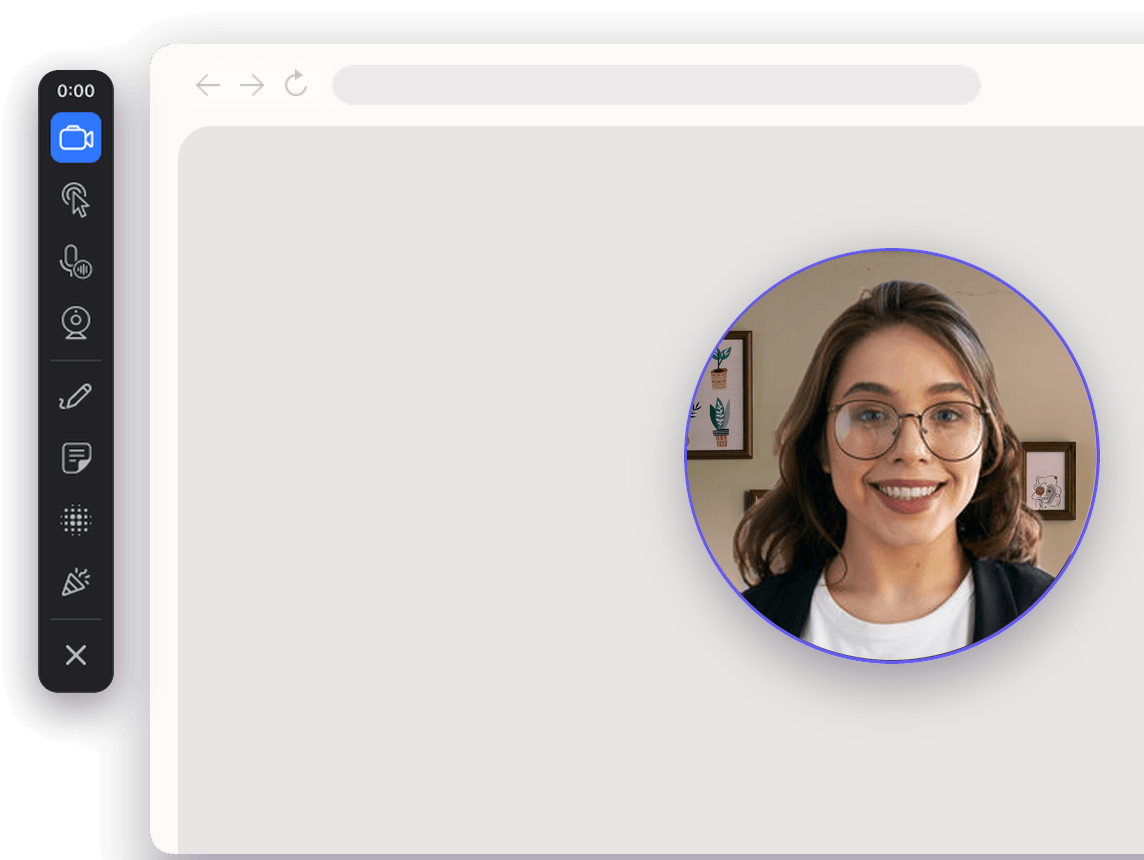
Jumpshare is the best free screen recorder for Windows. Record your screen in HD with webcam and audio. Draw while you record, turn recordings into notes with AI, and share instantly.
Trusted by teams at
Jumpshare offers everything you need to capture, narrate, and explain on screen. Every control lives in one floating toolbar, so nothing breaks your flow.
Open Jumpshare from the system tray, choose Record, pick your display, window, or region, and start. There is nothing to configure first.
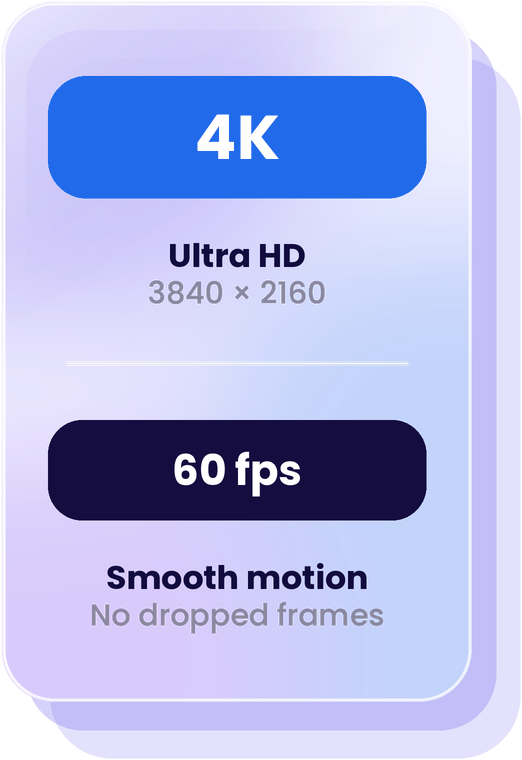
Keep code, product UI, and motion crisp enough to follow.
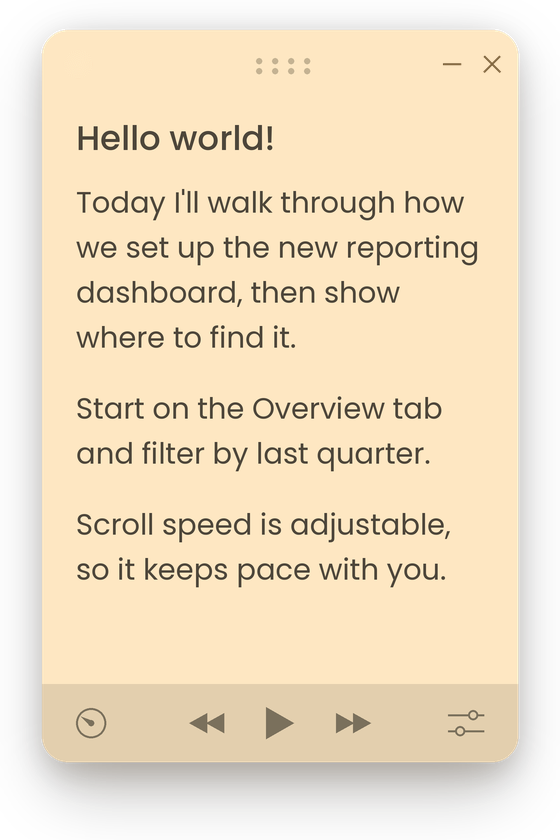
Keep talking points in front of you with a built-in teleprompter.
Explain with your voice, capture sound from Windows, or combine both in the same recording.
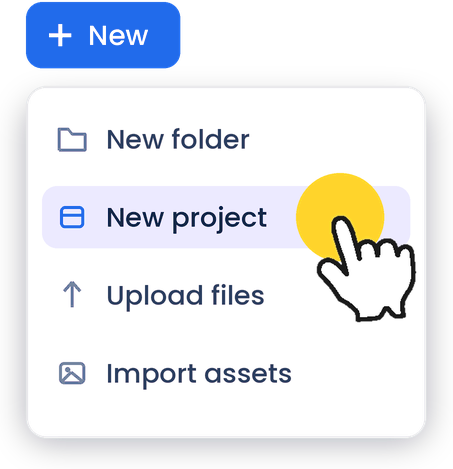
Add a colored click highlight so viewers can follow each action without guessing where to look.
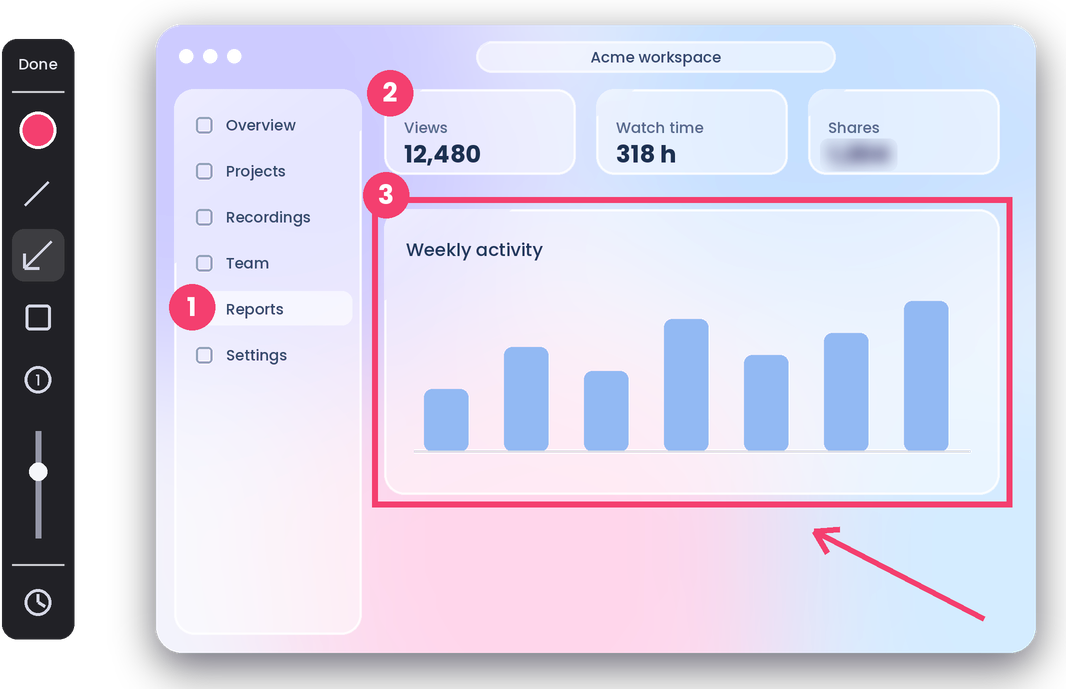
Point out details with arrows and shapes, and cover sensitive information while you record.
Jumpshare is a screen recorder engineered for Windows 10 and 11. It starts fast, records smoothly, and stays reliable without weighing down your PC.
Built specifically for Windows to deliver a fast, responsive recording experience that feels at home on your PC.
Designed to keep CPU and memory usage low, so your computer stays responsive while you capture your screen.
Record walkthroughs, demos, and longer sessions with stable performance you can depend on.
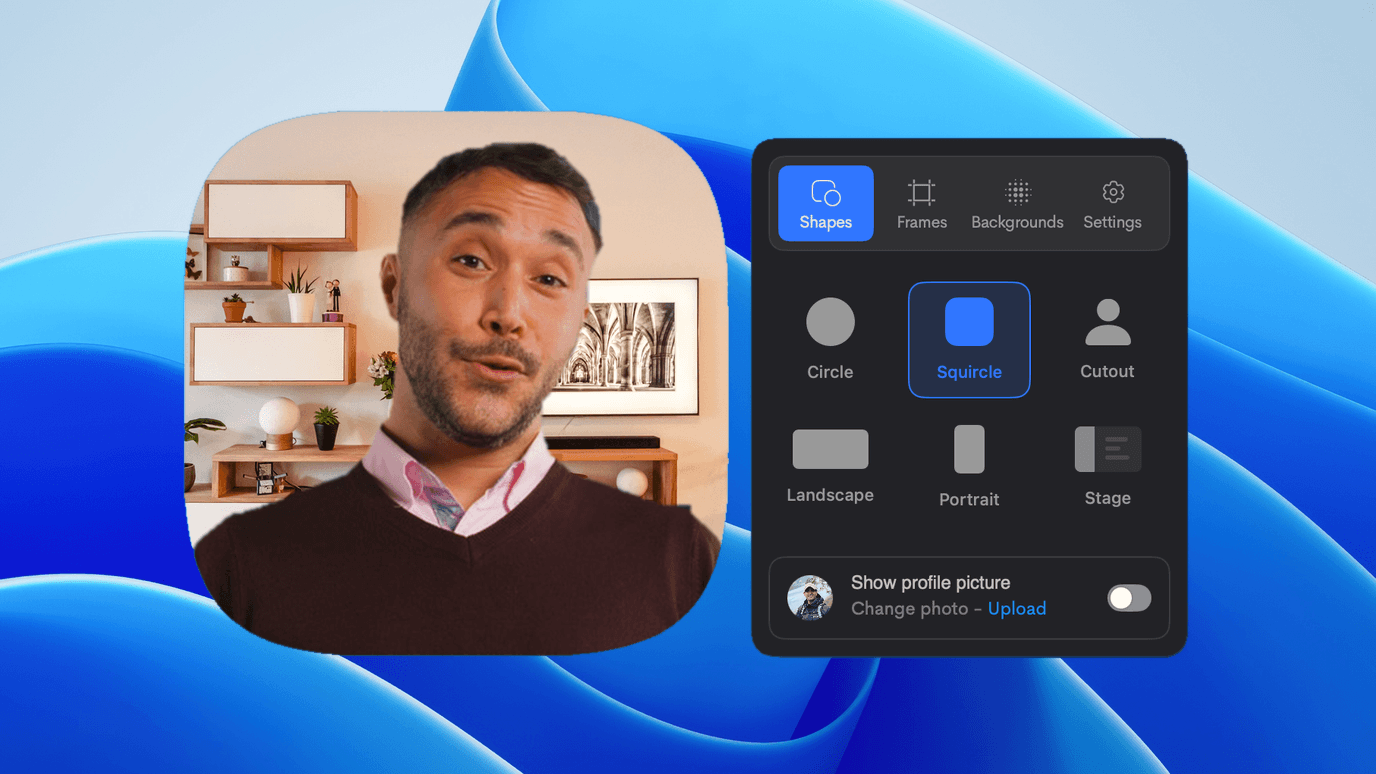
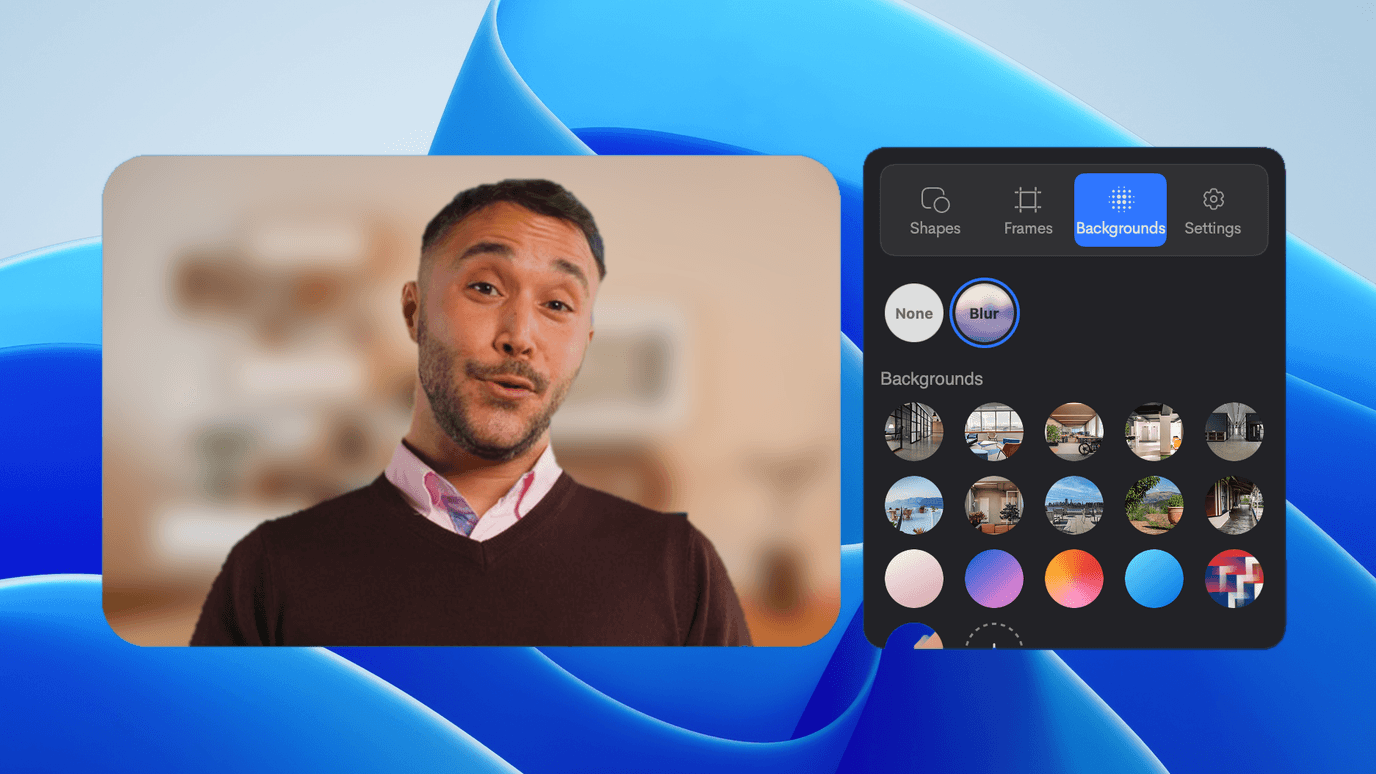
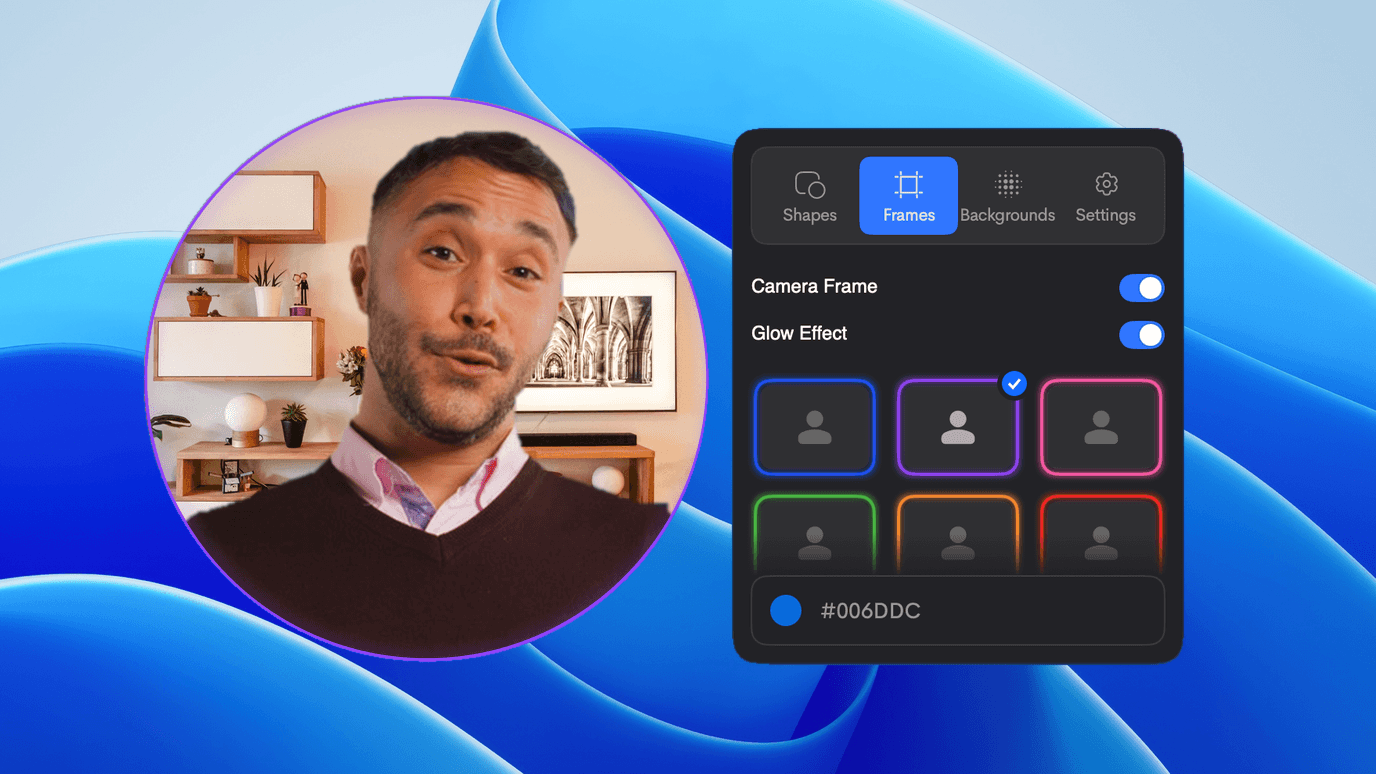
Your face is part of the message when the camera is on. Shape the webcam, clean up the background, and adjust the look right inside the recorder.

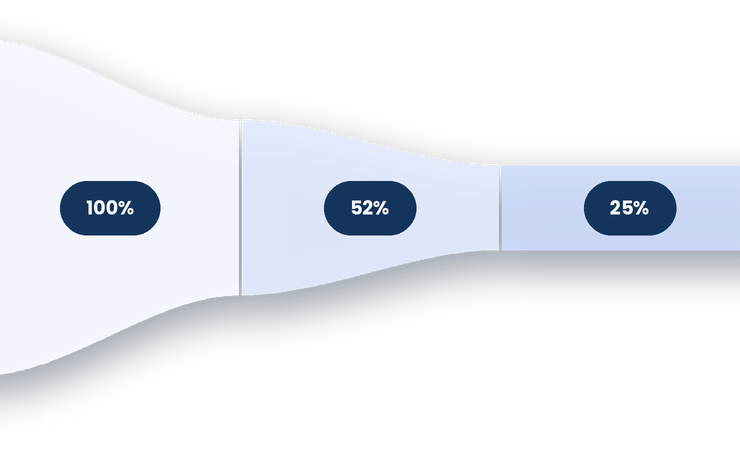
Uploading starts while the recording is still running. When you finish, most of the upload is already done, so your link is ready far sooner than with a traditional upload.
Approximate benchmark. Times depend on how long you record, the quality you choose, and your upload speed.
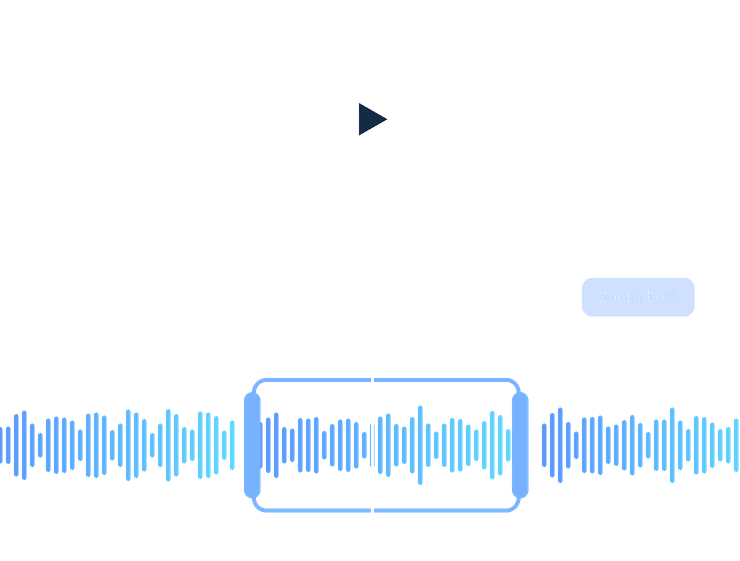
Trim the parts you do not need, join useful takes together, and choose what viewers see first, all after the recording is finished.
Cut the slow start, awkward ending, or any section that does not belong in the final video.
Combine clips into one clean recording when the best explanation happened across more than one take.
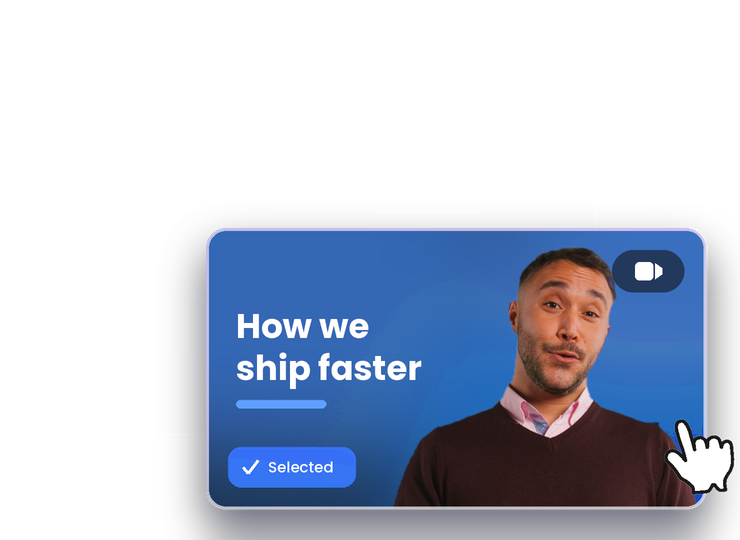
Choose a frame or custom image that makes the recording easier to recognize before anyone presses play.
Jumpshare turns what you said and showed into searchable text, steps, tasks, chapters, a title, and a summary, so the follow-up starts half written.
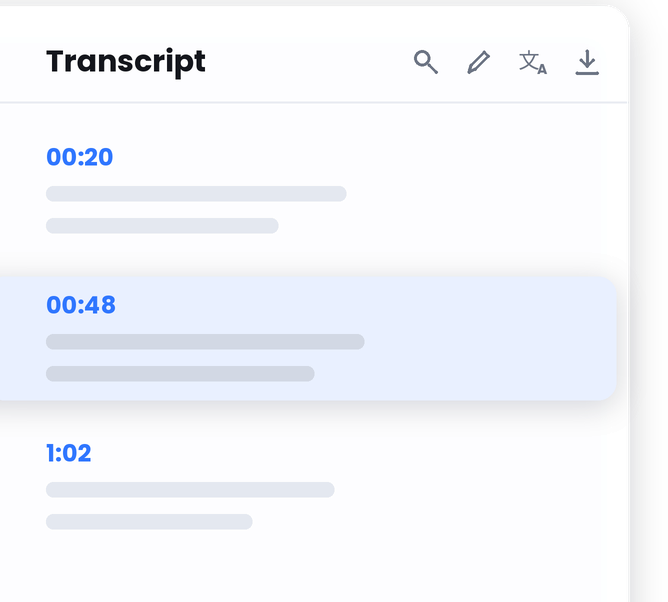
Every word becomes searchable, so you land on the right moment straight away.
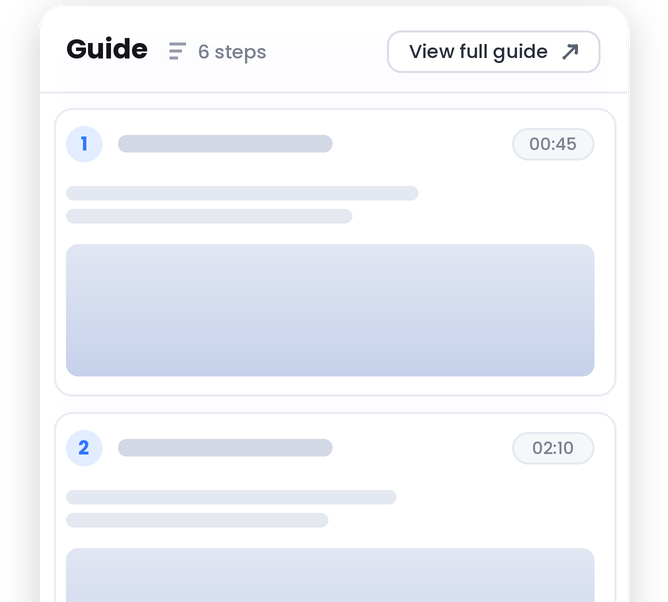
Convert a walkthrough into repeatable steps teammates can follow on their own.
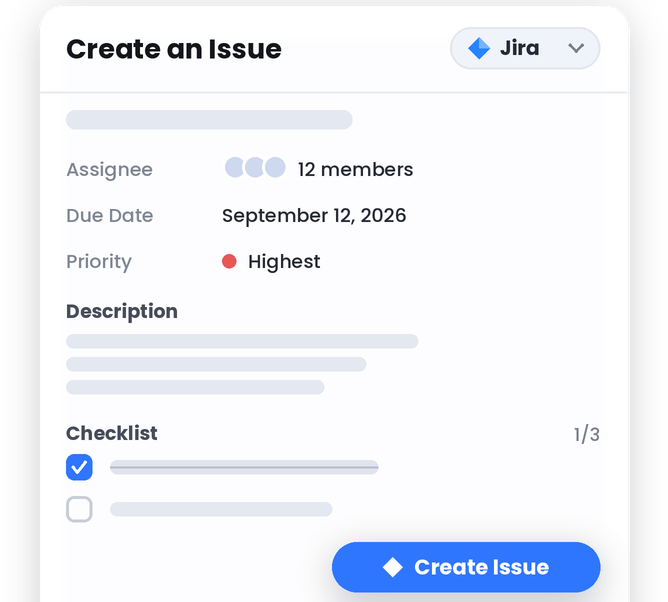
Issue tickets are drafted from the recording, so no one has to write them up by hand.
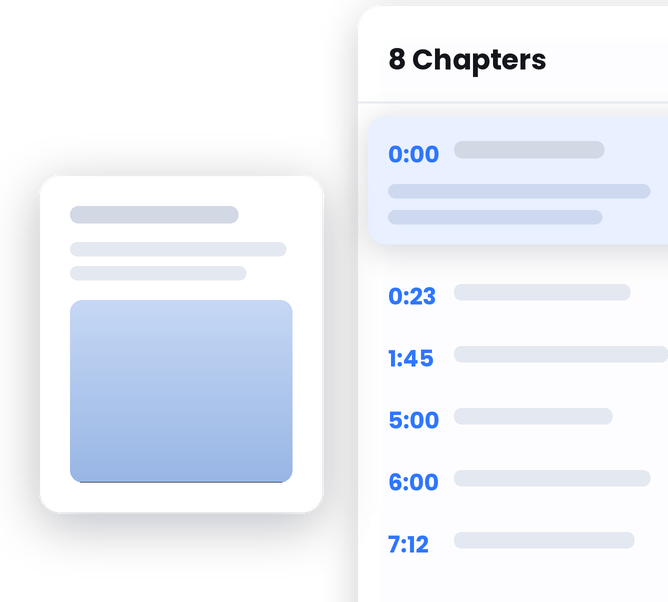
Split longer videos into sections viewers can jump between.
A descriptive name is written for you, so the file is still findable weeks later.
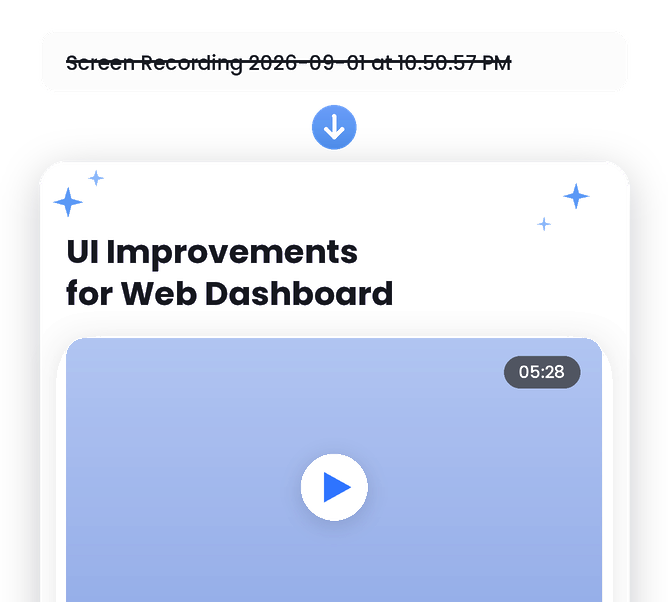
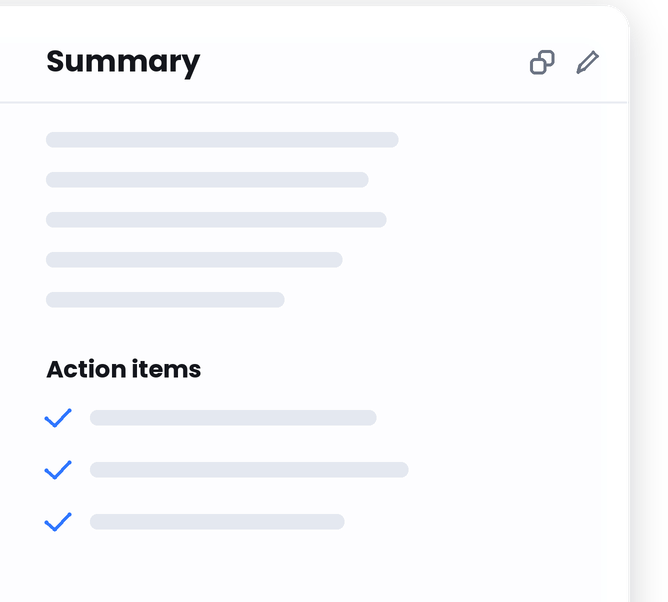
Give people the key points before they decide how much of the video to watch.
Turn a recording into something people can act on. Send viewers somewhere useful, collect details inside the video, and see how they engage.
Point viewers to a meeting, signup, product page, or any other next step with a clickable call-to-action.
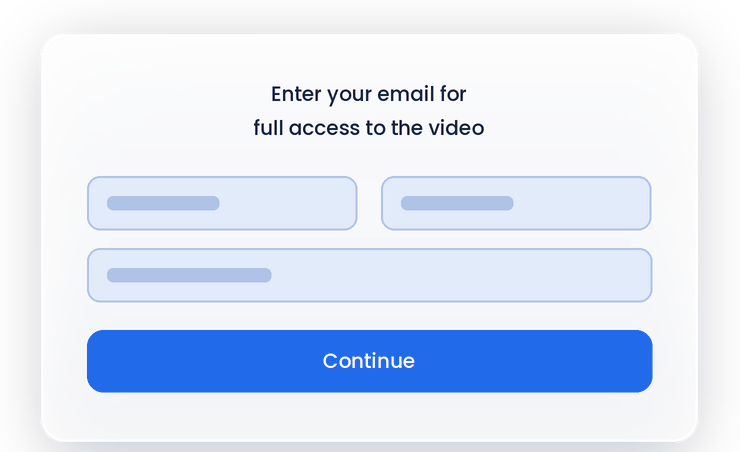
Ask for a name and email inside the player and a viewer becomes a lead before they click away.
See views, watch behavior, and clicks so you know what people actually did with the video.
Walk through a feature in context and send the recording instead of setting up another live demo.
Walk the customer through the fix on screen. They watch it once instead of decoding a long email.
Share progress, decisions, and context without adding another meeting to everyone's calendar.
Record the session once with narration, on-screen sound, camera, captions and chapters, then reuse it for every new starter.
Reproduce the issue on screen and give engineering the visual context a written ticket can miss.
Record a walkthrough for one prospect, drop in a booking link, and check whether they opened it.
Answers to the questions people ask before their first recording.
Open Jumpshare from the Windows system tray and click Record. Choose Fullscreen, Partial Screen, or Window, select the camera and audio options you want, then press Record to begin. When you finish, the video is uploaded and ready to share by link.
The steps on Windows 11 are the same as on Windows 10. Open Jumpshare from the system tray, choose Record, select Fullscreen, Partial Screen, or Window, set your webcam and audio, and start recording. Finish the capture and Jumpshare handles the upload so you can share the result online.
Jumpshare is the best free screen recorder for Windows if you want recording, editing, and sharing to happen in one place. OBS Studio is built for live streaming and requires configuration before your first take. Xbox Game Bar captures one app window at a time and will not record your desktop or File Explorer, let alone add a webcam. Jumpshare captures a display, window, or region with webcam and audio, uploads while you record, and has a shareable link waiting the moment you stop, with no watermark on the free plan.
Yes. Jumpshare can capture one application window or a custom region, so you do not have to show the rest of your desktop.
Yes. Add your webcam to the recording, move or resize it, and choose a layout, background, frame, or effect before or during the capture.
Yes. Select your microphone, your PC's system audio, or both before you start recording. System audio captures whatever is playing on your computer, so app sounds and videos are included.
Yes. Jumpshare supports recordings up to 4K Ultra HD and up to 60 fps, depending on your plan, selected settings, and PC hardware.
Xbox Game Bar is built for capturing games. It records one app window at a time, will not capture File Explorer or the desktop, and has no region select, webcam overlay, or drawing tools. Jumpshare records a full display, a window, or any region you drag, lets you add a webcam and annotate while you record, and gives you a link to send instead of a file.
Yes. The Jumpshare desktop app supports 64-bit Windows 10 and Windows 11.
No. Jumpshare does not add a Jumpshare watermark to your screen recordings.
The free Basic plan records in HD for up to 5 minutes per video and includes the core sharing tools. Upgrading unlocks 4K recording with no time limit, plus the full editing suite, AI, analytics, branding, and lead capture.
Capture your screen, webcam, and audio, polish the recording, and share the link, all in one app.