
Screen recorder for teachers and education
Create video lessons students can revisit whenever they need help. Record your screen and webcam, share one link, and make every explanation easier to review.
“Jumpshare is excellent for making how-to videos and sharing them with our regional network.”

Joseph Jimenez
Director at KIPP Texas Public Schools

Educators use Jumpshare to
-

Record video lessons students can rewatch anytime
-
Answer student questions with quick videos
-
Give precise video feedback on assignments
-
See how students engage with each lesson
-
Make every lesson accessible with captions
-
Build a video library for the whole course
Record video lessons for on-demand learning
Give students a lesson they can pause, replay, and revisit after class. Record your screen and webcam to create lessons they can watch anytime at their own pace.
Offer quick guidance
Walk a student through a tricky problem with a short recording they can replay at their own pace.
Build a video library
Store every lesson in an online library, organized by course and accessible on demand. Students find what they need before the exam, not after.
Help students move from watching to doing
Point students to what comes next
Add a call-to-action button to any lesson that links to the quiz, assignment, or reading that follows. Students can move directly from the lesson to the next activity.
Answer questions where they happen
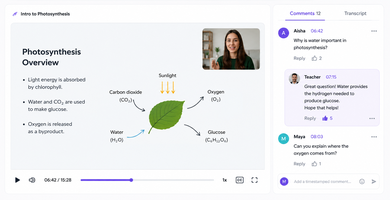
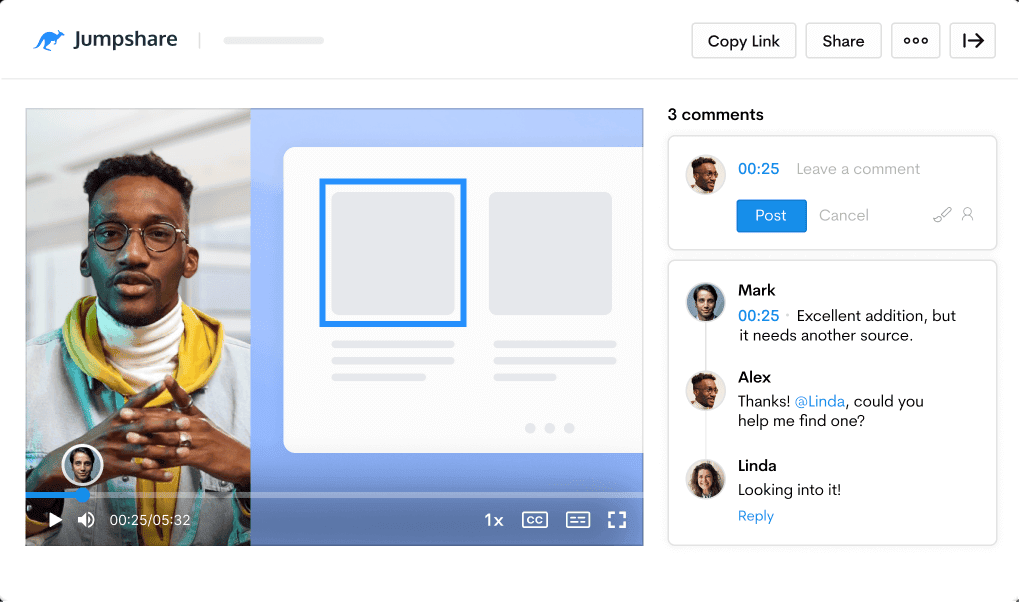
Students leave timestamped comments at the exact moment they got stuck. You reply once, and the whole class benefits from the answer.
Create video guides that enhance course material
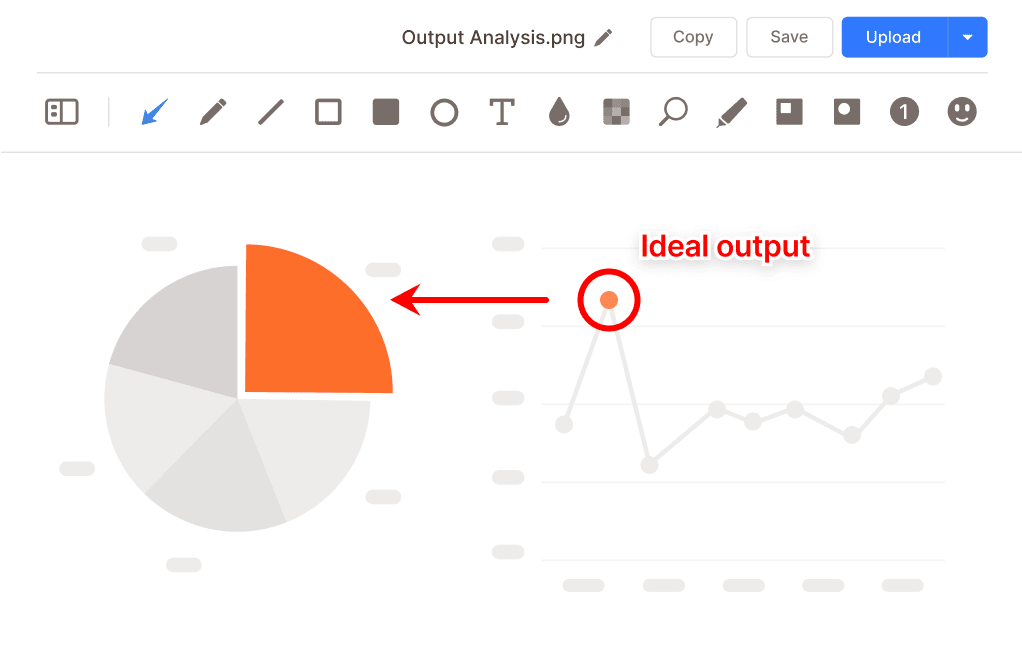
Some procedures and concepts are easier to understand when students can see them. Add recorded walkthroughs that show complex steps in motion.
Guide with video
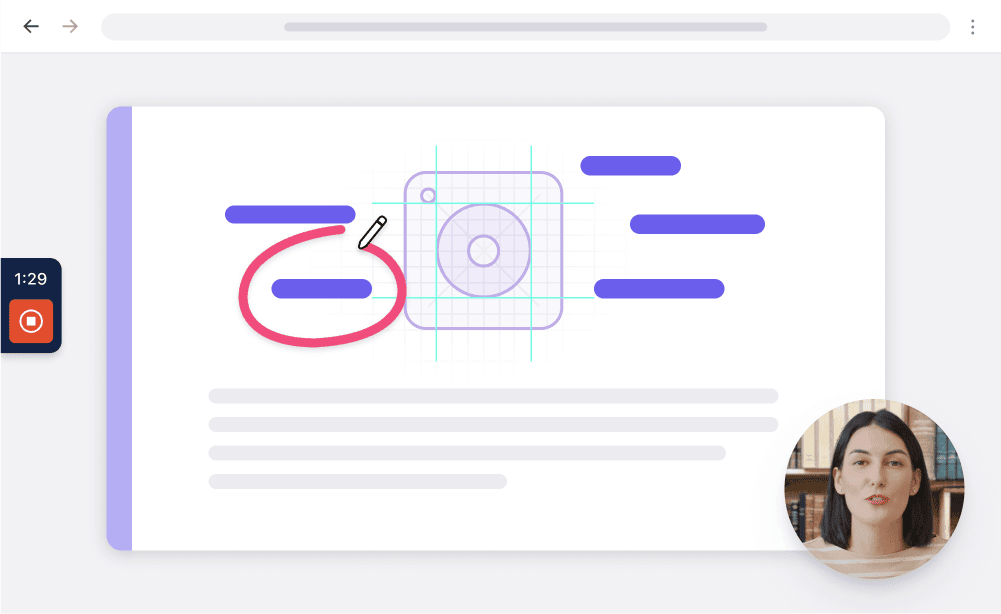
Demonstrate a procedure step by step and draw on screen to highlight what matters.
Make every lesson accessible
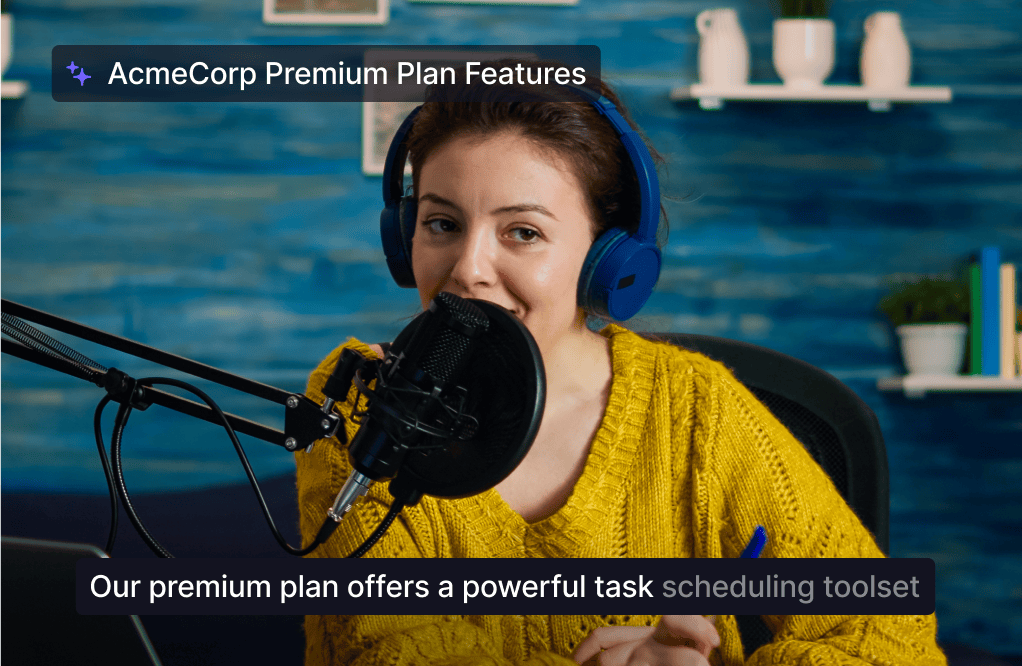
Add captions and transcripts in over 50 languages so lessons are easier to follow and review.
Monitor student engagement with video analytics
Built-in video analytics show how students engage with each lesson, giving you useful signals for what to revisit.
See where students need more help
Track views, watch time, and completion. Replays can reveal topics that may need another explanation.
Follow up where it counts
Check in with students who haven't watched before the deadline or may need extra help.

Prepare lessons faster with AI
Jumpshare AI automatically prepares each recording for sharing, reducing the time you spend on post-recording work.
Turn lectures into study notes
Turn one lecture into study notes, a recap message, or suggested next steps with AI Actions.
Instantly ready to share
Every lesson gets an automatic title, summary, and chapters, so students can jump straight to the topic they need to review.
Everything teachers need to record and share lessons
Recording, feedback, and analytics in one place. Jumpshare is the screen recorder for education that works from the first lesson to the final grade.
Screen Recording
Record your screen and webcam at the same time in up to 4K. Draw over your screen to highlight areas of interest as you record.
Instant Video Editing
Trim, split, and join recordings right where you record. Fix a stumble without re-recording the whole lesson.
Video Analytics
Track views, watch time, and completion for every lesson, so you always know who watched and what needs revisiting.
Trusted by thousands of educators

4.9/5 based on our user reviews

Jumpshare replaces about four or five apps that I would typically need to use to achieve the same results. This is such an improvement to my daily workflow.
Ethan Darling
IT Manager at Thayer School of Engineering

Frequently Asked Questions
What is the best screen recorder for teachers? +
The right option depends on how you teach, but most teachers need simple screen and webcam recording, annotation tools, easy sharing, and captions for accessibility. Jumpshare brings these together in one workflow, making it easy to record and share lessons.
Why use a screen recorder for teaching instead of live classes alone? +
Recorded lessons give students more control over how they review material. A recorded lesson can be paused, rewound, and rewatched the night before an exam, which a live class cannot. It also changes feedback: showing a student what to fix in a short video is often clearer than writing it out. Many teachers start with one recorded lesson and end up building a small library.
How do I record a video lesson? +
The same way you would teach it live. Open your slides or materials, hit record, and talk through the lesson, drawing on screen to highlight key points. In Jumpshare, the recording uploads when you stop and a link is copied to your clipboard, ready to paste into your LMS, email, or classroom chat. No exporting or uploading steps.
Can students watch recorded lessons anytime? +
Yes, that is one of the main reasons teachers record lessons. Recordings stay in an online library you can organize by course or topic, and anyone with the link can watch on any device. Students may find this especially useful before exams, when they want to revisit the sections they found hardest.
Can I see whether students actually watched a lesson? +
Yes. Each video shows views, watch time, and how much of it was completed. In practice this is useful in two directions: you can check in with students who have not watched before a deadline, and if the whole class keeps rewinding the same section, that is usually a sign the topic needs another pass.
Does Jumpshare support captions and accessibility? +
Yes. Captions and a transcript are generated automatically for every recording, in over 50 languages. Beyond accessibility requirements, transcripts turn out to be genuinely useful for studying, since students can search them to find the exact moment you covered a topic.
Can I use Jumpshare for a flipped classroom? +
Yes, this is a common setup. Record the lecture portion as a video for students to watch before class, then spend class time on discussion, questions, and practice. Students can leave comments at specific timestamps in the video, so you arrive in class already knowing where they got stuck.
Create your first reusable video lesson
Download Jumpshare and record a lesson your students can revisit today.
Record video lessons