Screen Recording
 Screenshot Capture
 GIF Capture
 File Sharing & Collaboration
 Jumpshare AI
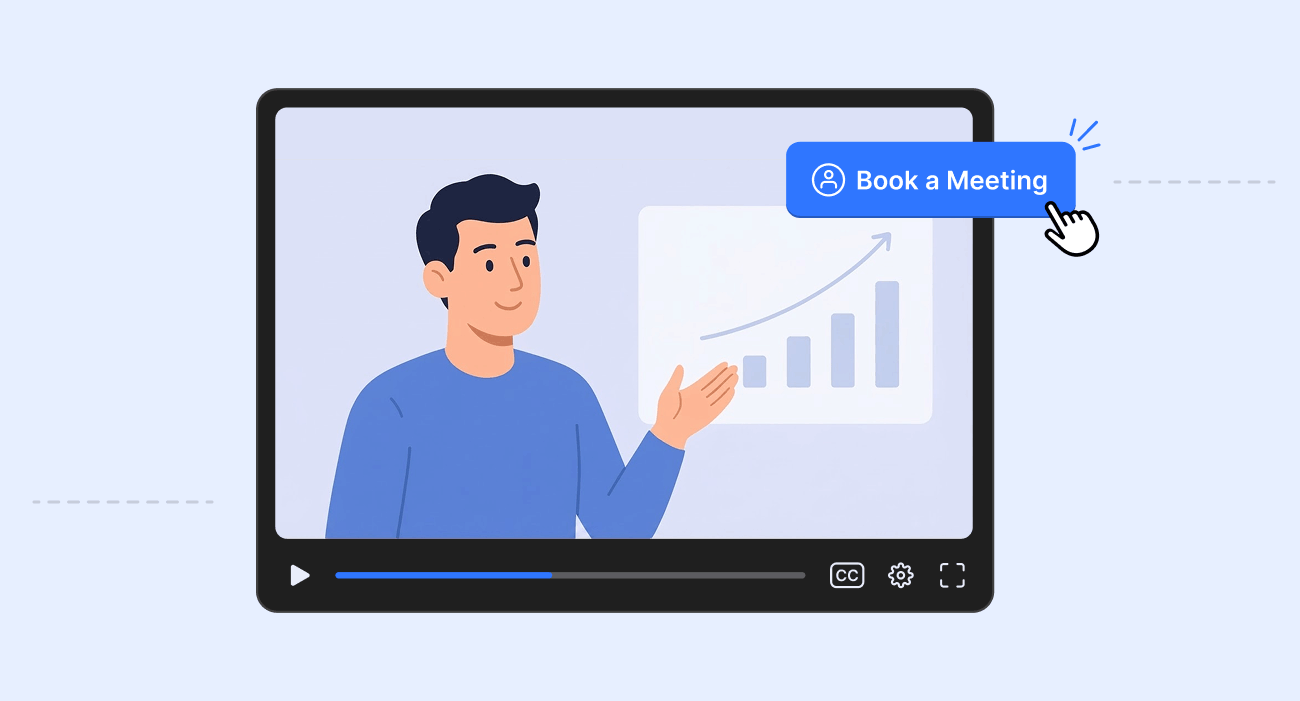
Landing a sales meeting starts long before a prospect agrees to one. Before they’re willing to book time on their calendar, they first need to understand what you offer, why it matters, and why they should trust your business. Video is one of the most effective ways to make that happen. It allows you to introduce yourself, demo your product, answer common questions, and communicate far more clearly than a lengthy email ever could. Combined with the right interactive elements, videos can become a reliable way to turn interested viewers into booked meetings.
In this guide, we’ll look at how video can help you book more sales meetings and how Jumpshare lets you manage the entire process from a single platform.
Why Video Works for Sales
Unlike text-based outreach, videos let potential customers see your product in action while putting a face and voice to your business. That personal connection helps build trust and keeps viewers engaged for longer.
Videos can be used throughout the sales pipeline, with common use cases being:
- Cold outreach
- Product demos
- Personalized sales pitches
- Follow-up emails
- Proposal walkthroughs
- Customer onboarding
Creating a great sales video is only the first step. To consistently book meetings, you need to make it easy for interested viewers to take action while they’re engaged.
Interactive elements such as lead capture forms and CTA buttons, when embedded directly into videos, go a long way in converting views to action. Prospects are offered a clear, frictionless path to booking a meeting, which reduces the chances of unnecessary steps costing you a customer.
How to Turn Videos into Sales Meetings with Jumpshare
Jumpshare offers tools for each step of a video-focused sales pipeline, from video creation, hosting, and sharing to lead generation, conversion, and engagement tracking.
1. Create a Professional Sales Video
Start by recording a product demo, personalized pitch, presentation, or walkthrough using Jumpshare’s screen recorder.
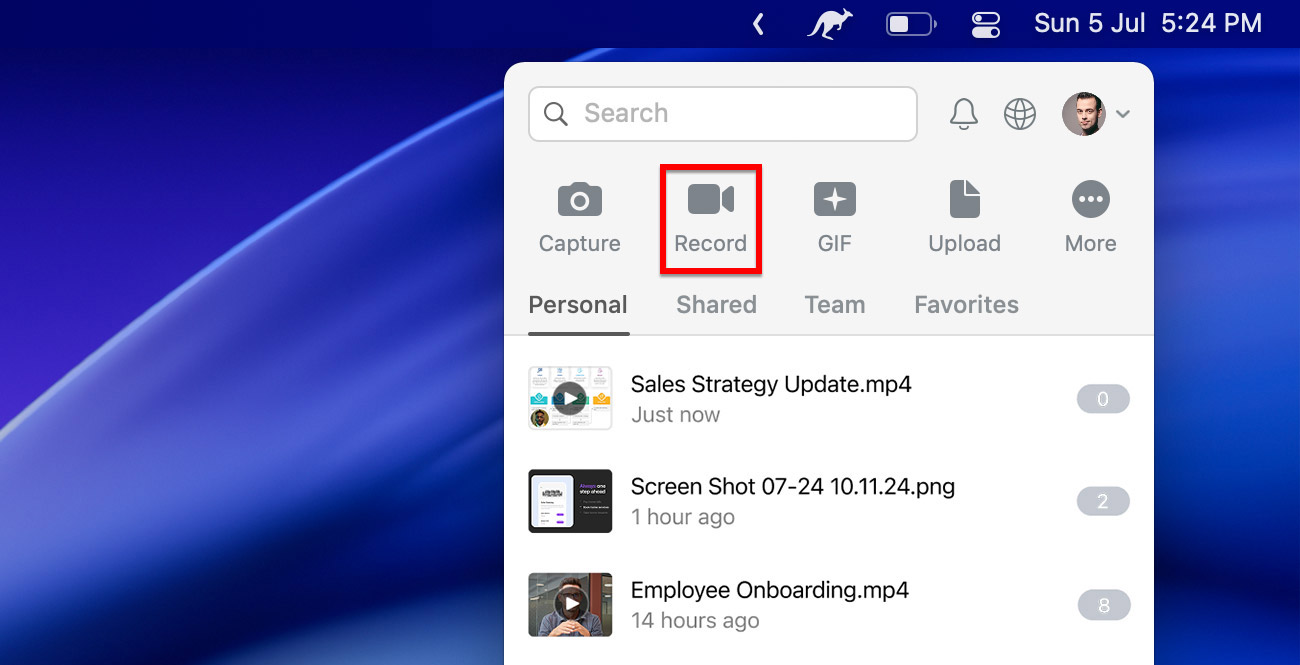
- Click on the Jumpshare icon in the System Tray (Windows) or Menu Bar (Mac).
- Select the Record option from the top of the Jumpshare window.
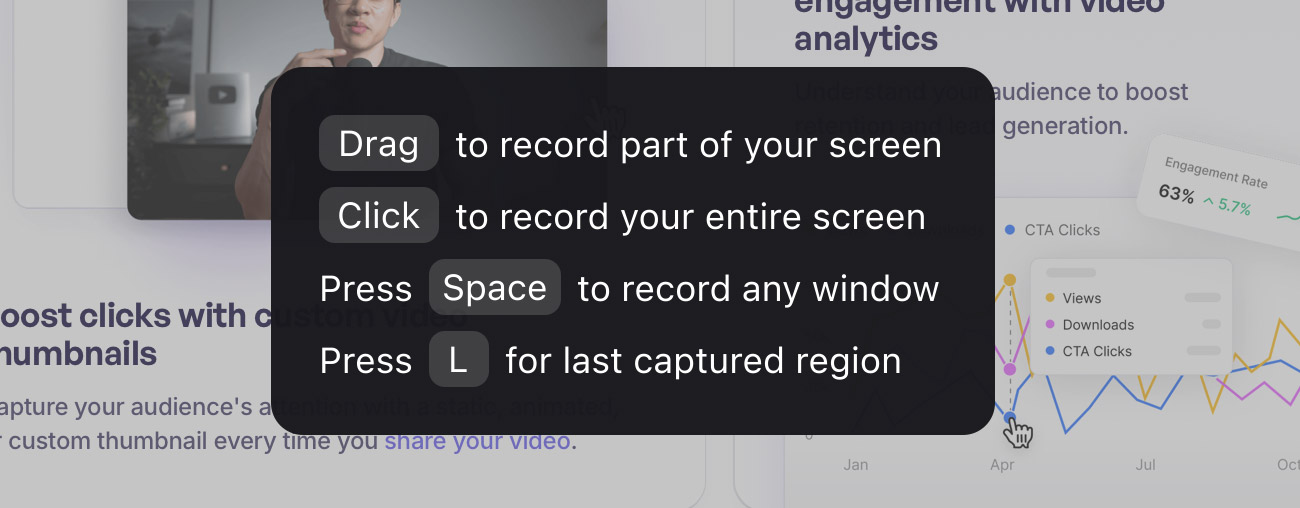
- Pick your recording mode – full-screen, an area of the screen, or a window.
- Customize your recording – turn on your microphone, enable system audio recording, turn on click highlighting, and add a customizable webcam overlay so prospects can see you and your product at the same time.
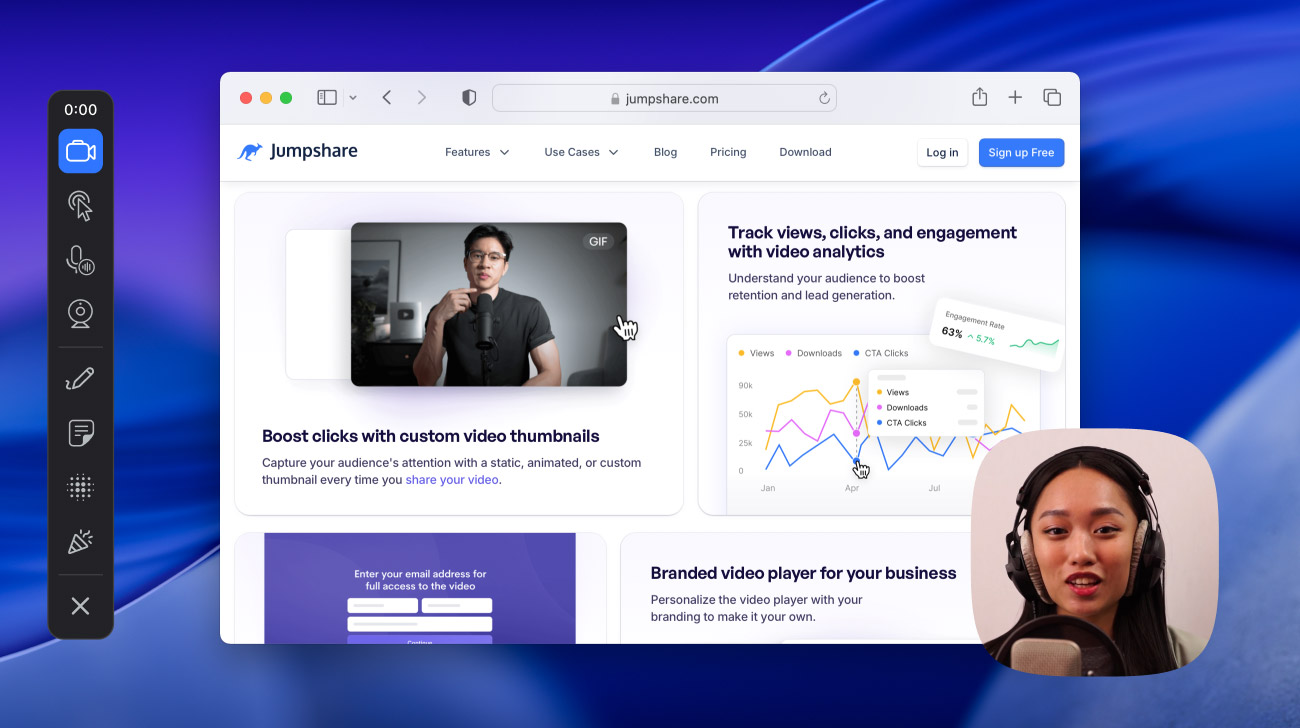
- Once you’re done setting up, hit the Record button.
- Hit Stop when you’re done recording.
When you click Stop, the recording is automatically uploaded to your Jumpshare library and is immediately ready to share. Your task isn’t done yet, though. Reviewing your video and adding finishing touches comes next.
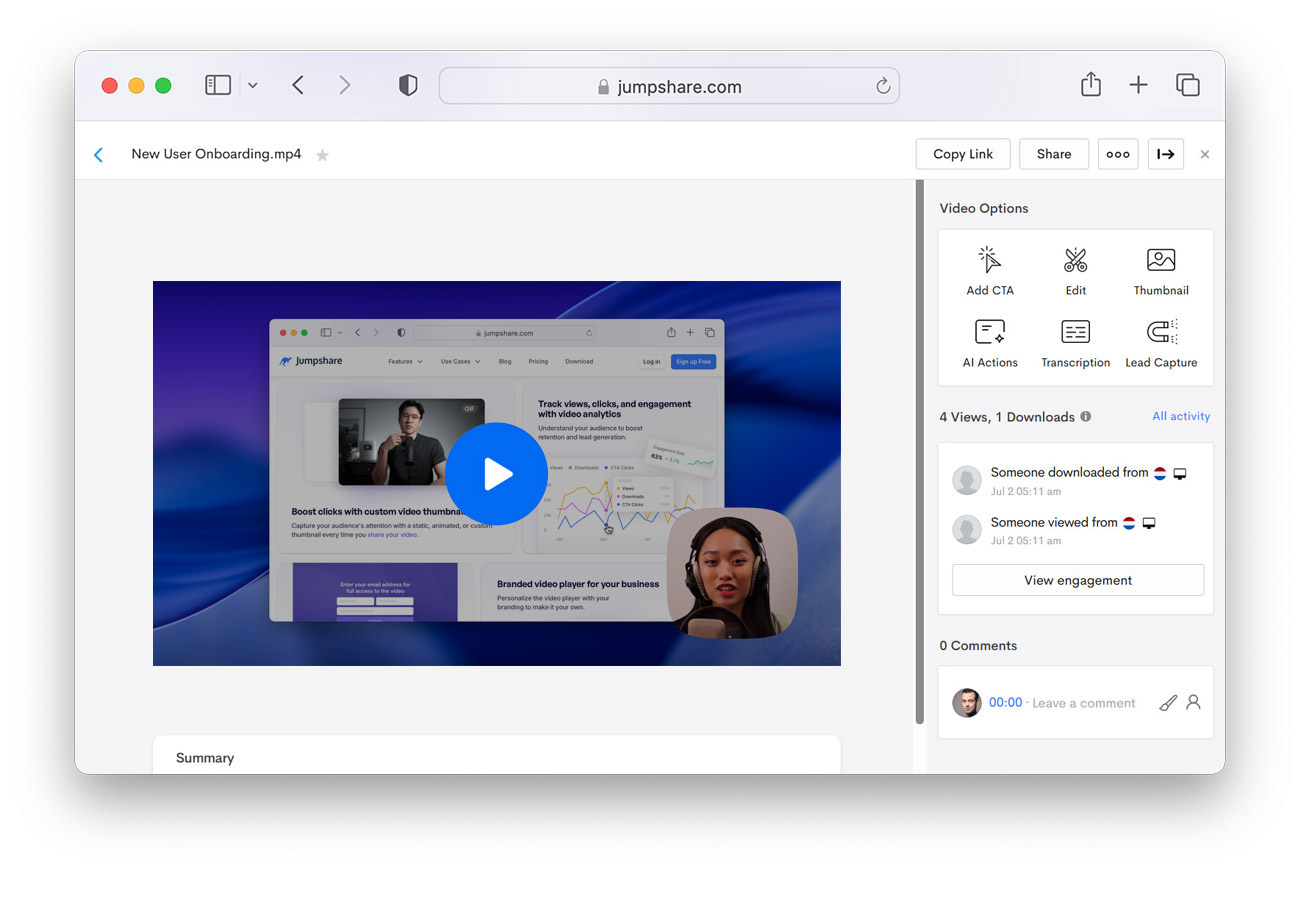
Open the Jumpshare window again and select your recording from the list of uploads. This opens the video in Jumpshare’s web-based video player, where you can:
- Review your video and its AI-generated transcript, title, captions, summary, and chapters
- Edit the transcript, title, captions, and summary as needed
- Edit the video itself to remove outtakes or trim out fluff
- Choose a custom static or animated thumbnail
The more effort you put into recording and post-production, the more likely your video is to create a positive perception of your brand and capture your prospects’ attention.
2. Add a CTA to Guide Prospects to Book a Meeting
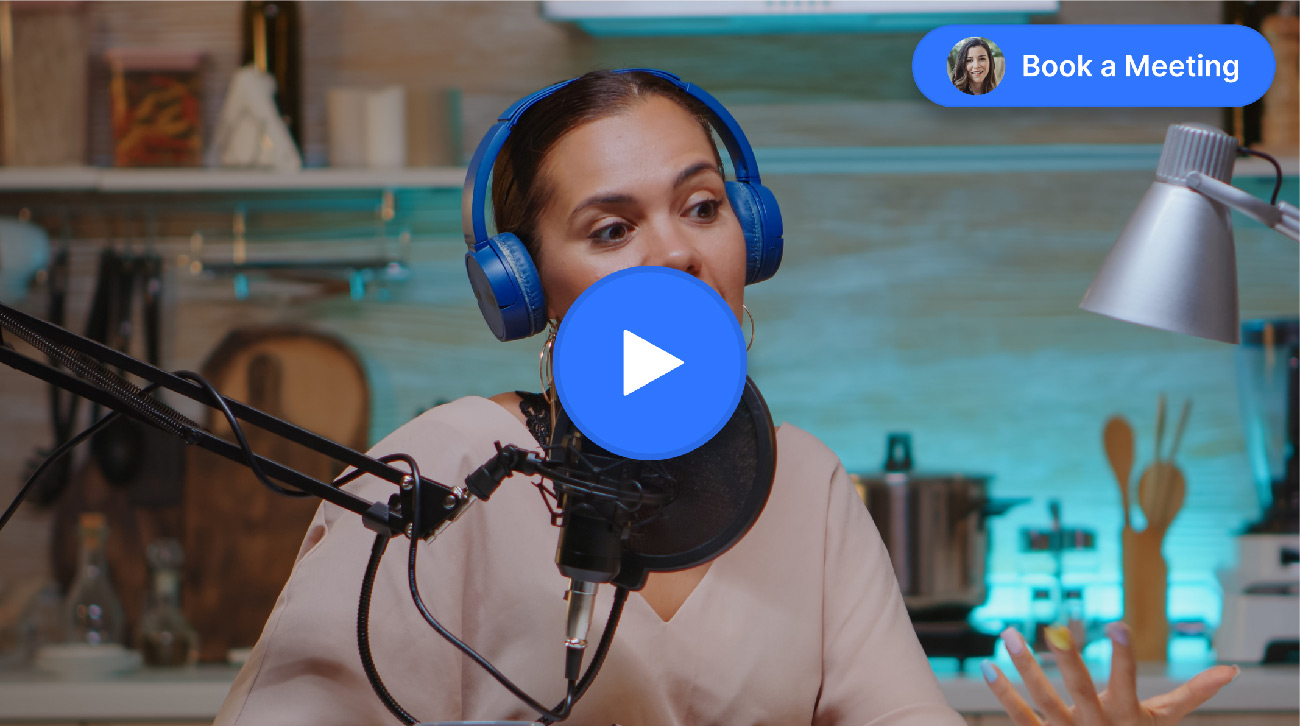
Once you’ve demoed your product or service, make it easy for viewers to take the next step by adding a customizable CTA (call-to-action) button to your video.
To add a CTA button to your video:
- Open your video from your Jumpshare library.
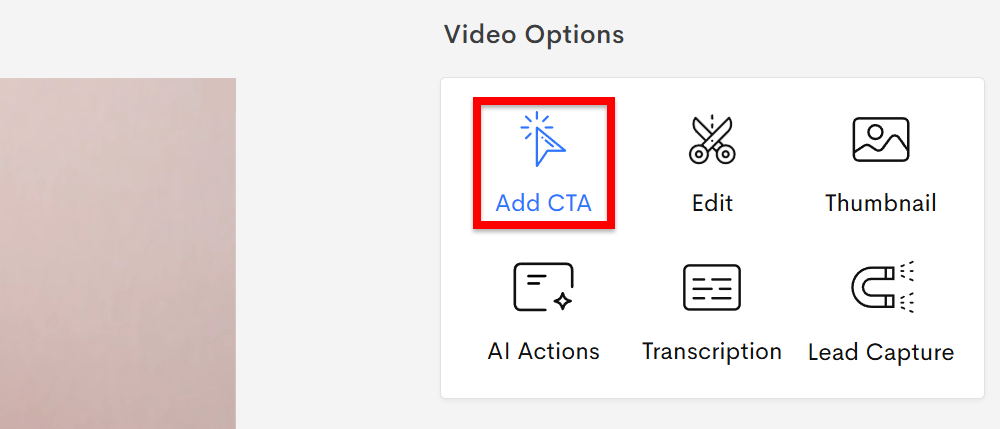
- Select the Add CTA option from the right sidebar.
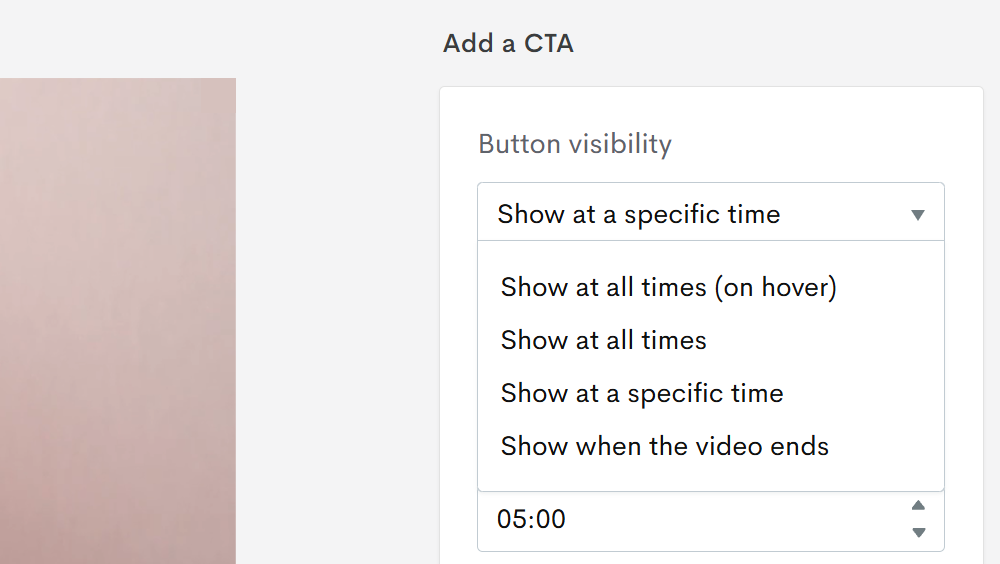
- Choose when the CTA will be displayed over your video – at the beginning, at a specific timestamp, or at the end.
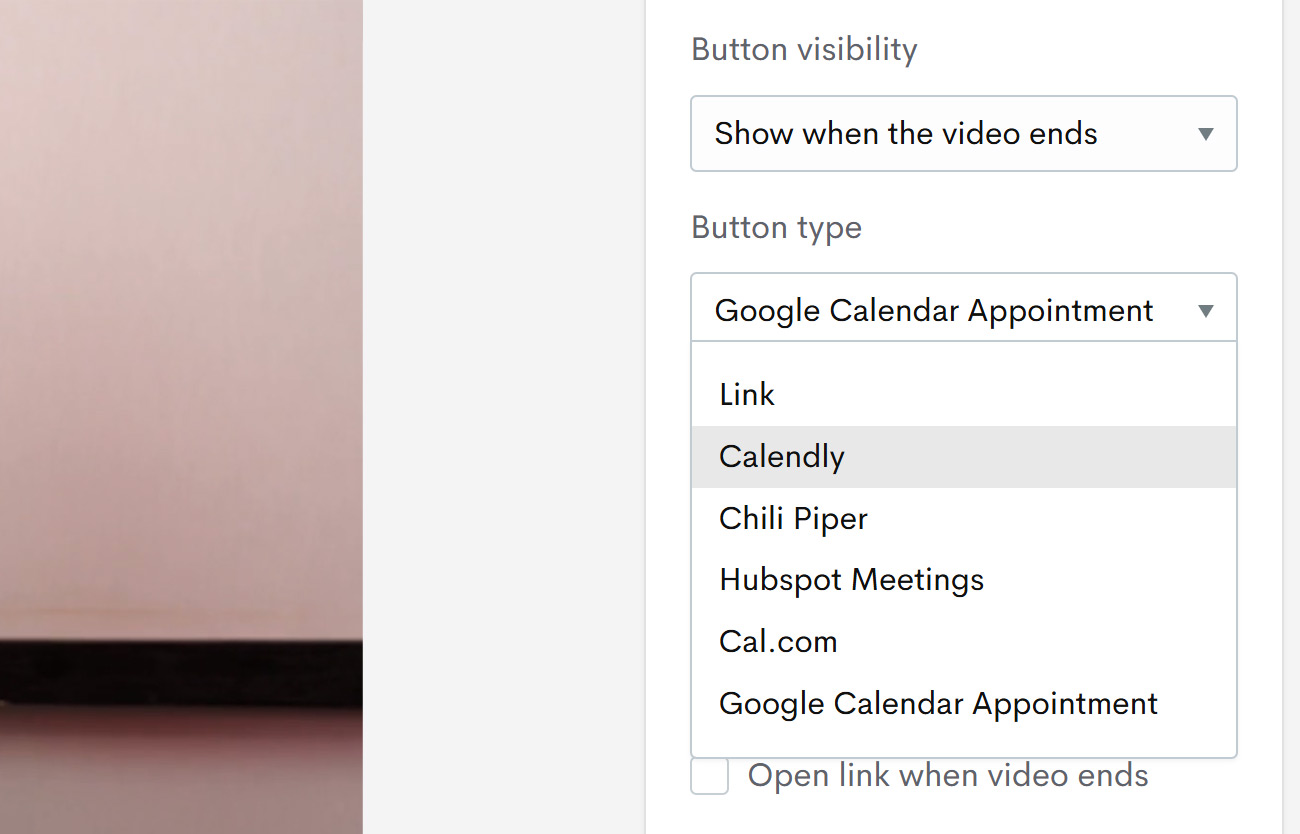
- Open the Button type dropdown and select your preferred meeting scheduling service (such as Calendly or Google Calendar Appointment Schedules).
- Enter the button text. Choose a clear and concise call-to-action, such as “Schedule a Meeting” or “Book a Call.”
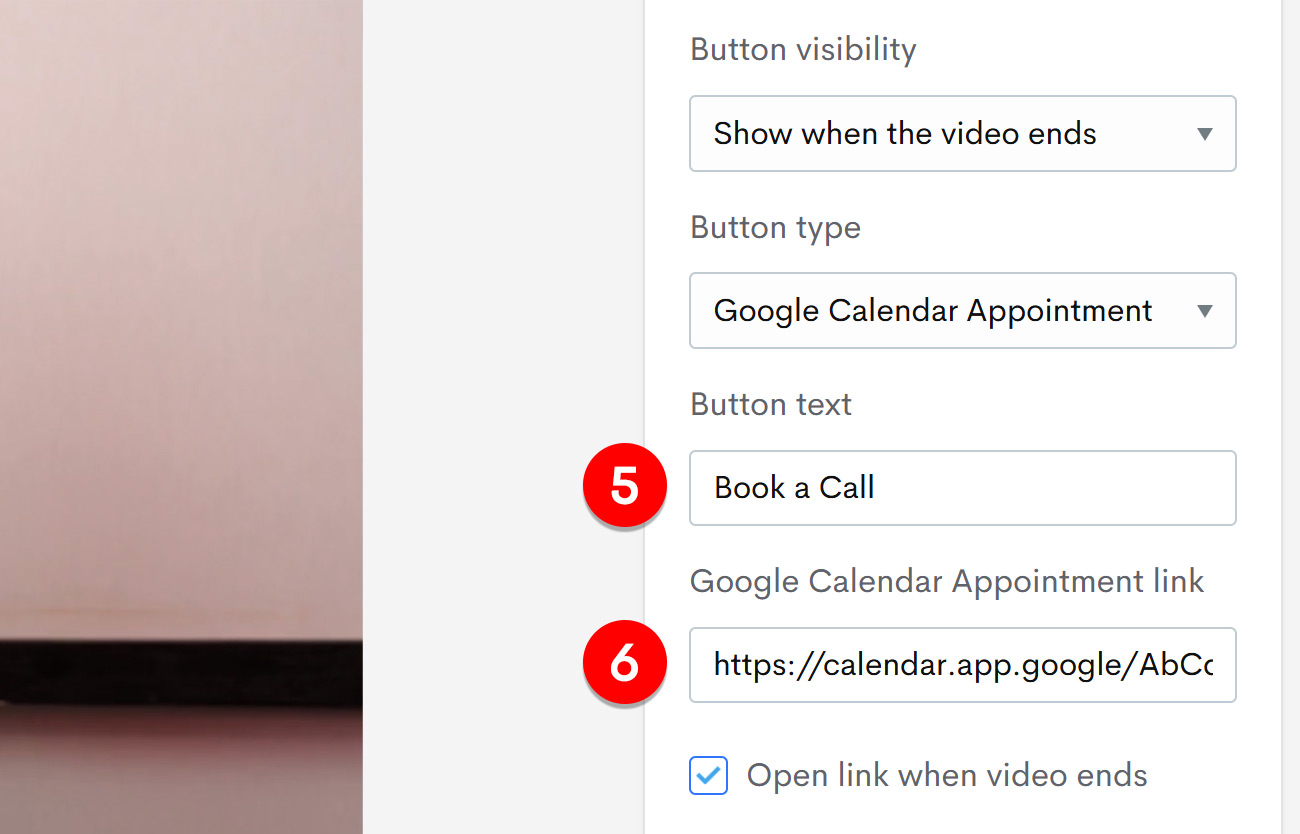
- In the field below, paste your appointment link, then choose whether you want the link to open automatically when the video ends.
- Customize the appearance of the button (button color, text color, and button position) and choose whether you want to add your profile photo to it.
- Click Save to add the CTA button to your video.
3. Share the Videos Through a Link or Email
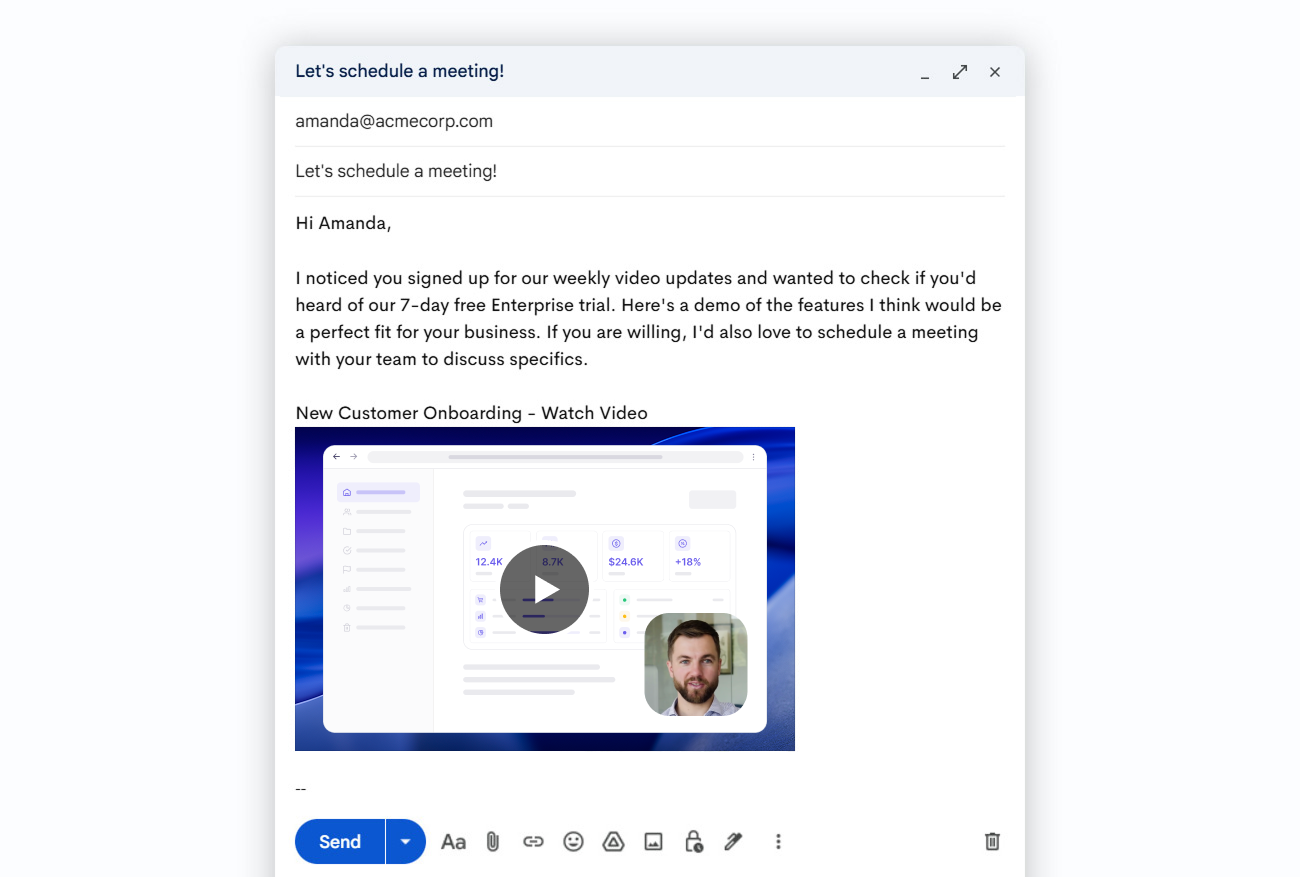
Instead of attaching large video files to your emails, simply share your recording using a secure link. You can paste the shareable link into any email, CRM software, or messaging platform. Alternatively, you may email the video to multiple prospects directly from Jumpshare without leaving the app.
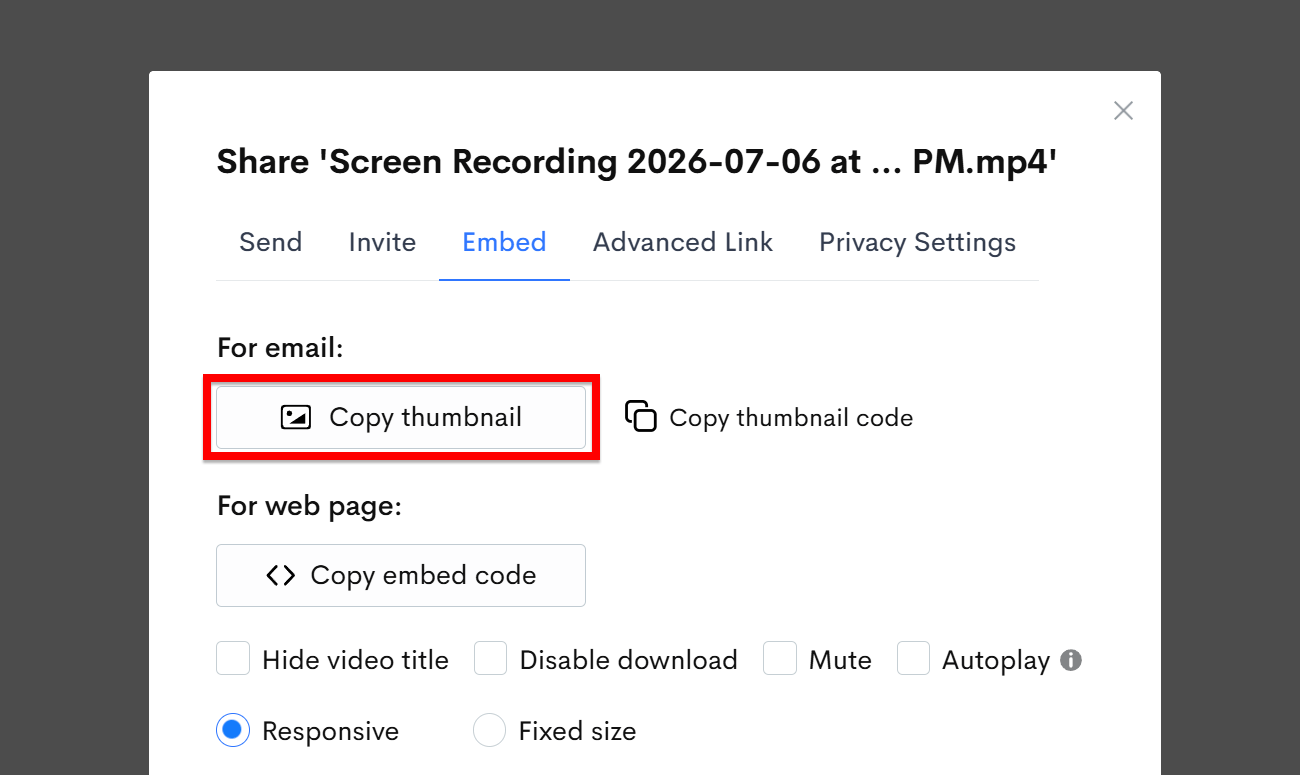
For greater engagement, Jumpshare also lets you embed a clickable video thumbnail in your email. You can copy a video’s thumbnail by opening its Share dialog and selecting Embed > Copy thumbnail.
4. Monitor Engagement
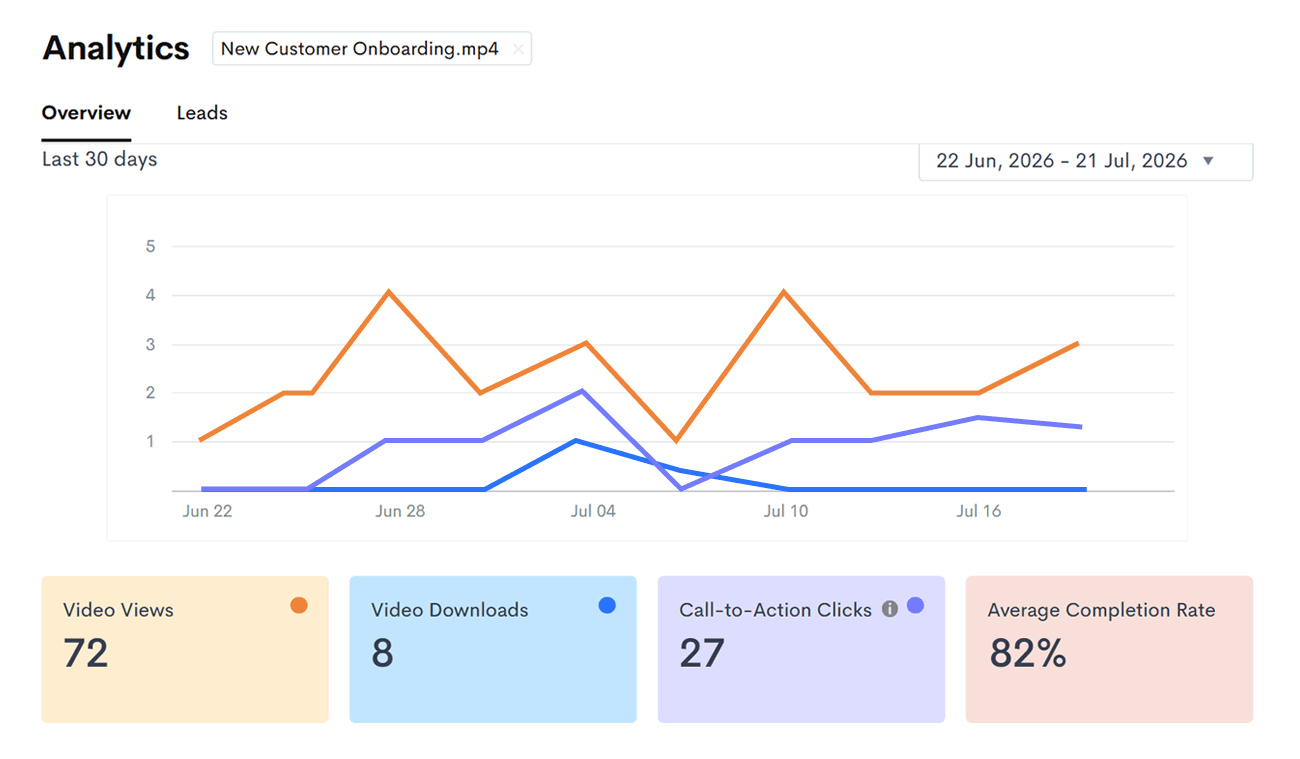
Jumpshare also gives you insight into how prospects interact with your videos. You can open a video from your Jumpshare library, click the More (…) button in the top-right corner, and select the View stats option to view the following metrics over a chosen period of time:
- Views
- CTA clicks
- Downloads
- Average completion rate
- Collected leads (for videos with embedded lead forms)
These insights make it easier to prioritize follow-ups and continue conversations with your most interested prospects.
Why Use Jumpshare for Video-Based Sales?
Jumpshare is an all-in-one solution for video-first sales campaigns, with features that cover every stage of the workflow. You can:
- Record your screen, webcam, or both
- Share videos instantly with a link or through email
- Automatically generate video transcripts, captions, titles, summaries, and chapters
- Customize the video player with your branding
- Add lead capture forms to videos
- Export collected leads
- Add customizable CTA buttons
- Track views and viewer engagement
- Collect feedback with timestamped comments and video markups
All these features being under one roof means you can spend less time on logistics and more time building relationships with prospective customers.