Screen Recording
 Screenshot Capture
 GIF Capture
 File Sharing & Collaboration
 Jumpshare AI
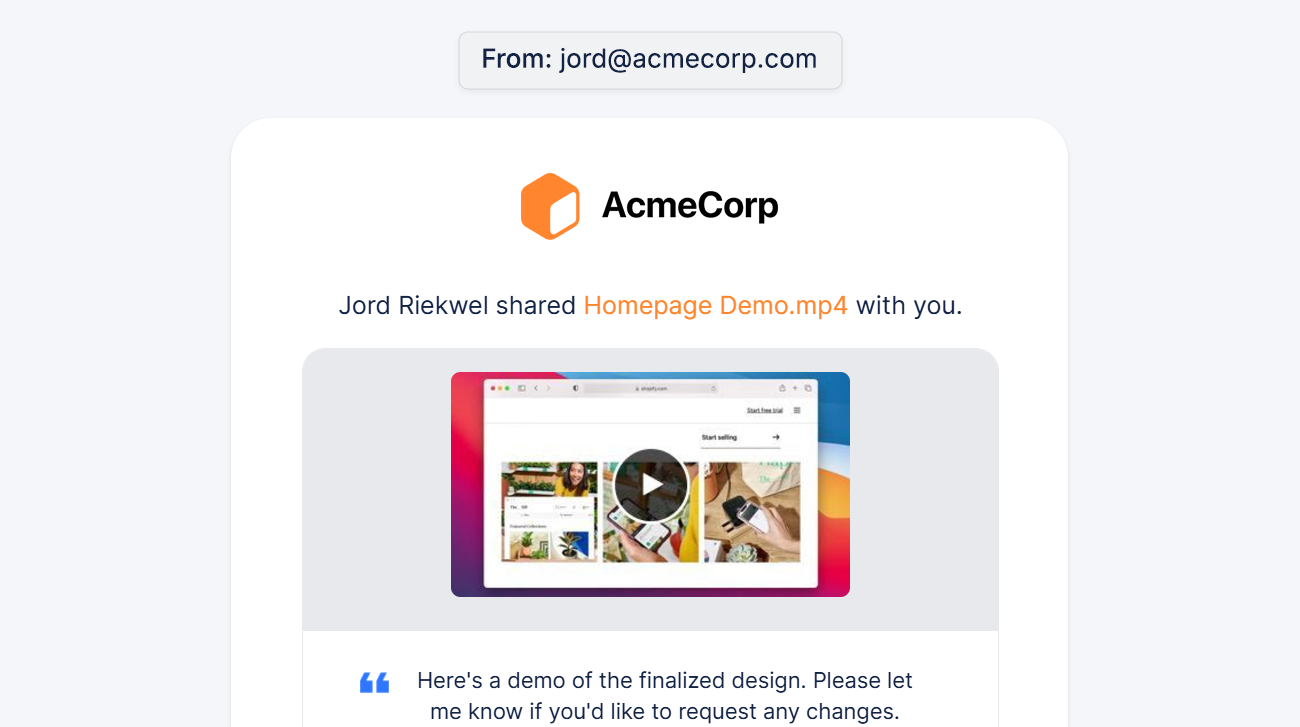
Email remains the premier way to communicate with colleagues, clients, and customers. When it comes to sharing video, however, it runs into the familiar problem of file size limits.
Most email providers restrict attachment sizes, making it difficult to send longer video presentations and screen recordings. Fortunately, there are a couple of simple ways around these limitations, some built directly into popular email services. If, however, you regularly share large videos or use videos in your email campaigns, you might want to opt for a dedicated solution like Jumpshare. It seamlessly integrates with your workflow, offers greater control across the board, and allows you to track when, how, and by whom your videos are viewed.
In this tutorial, we’ll show you three easy ways to send videos through email effortlessly with Jumpshare.
How to Send Large Videos Through Email
- Send a Video Through Email Using a Link
- Embed the Video’s Thumbnail in Your Email
- Email the Video Directly From Jumpshare
Send a Video Through Email Using a Link
Jumpshare automatically generates a link for any video you upload to it, allowing you to share it anywhere in an instant. You can upload and share videos up to 20GB in size.
Here’s how to use this to send large videos quickly through email:
- Upload a video to Jumpshare through its web dashboard or by dragging your video onto the Jumpshare icon in the Windows System Tray or Mac Menu Bar.
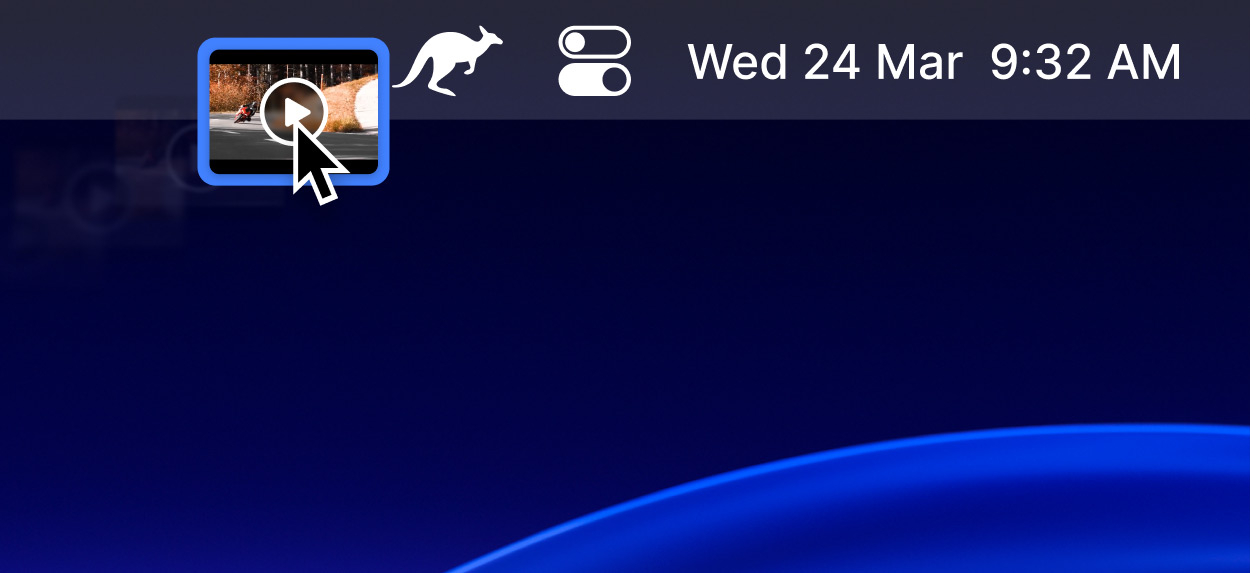
- If you’re using the desktop app, the shareable link will be automatically copied to your clipboard as soon as the video starts uploading. For the web dashboard, right-click the uploaded video and select Copy Link from the menu.
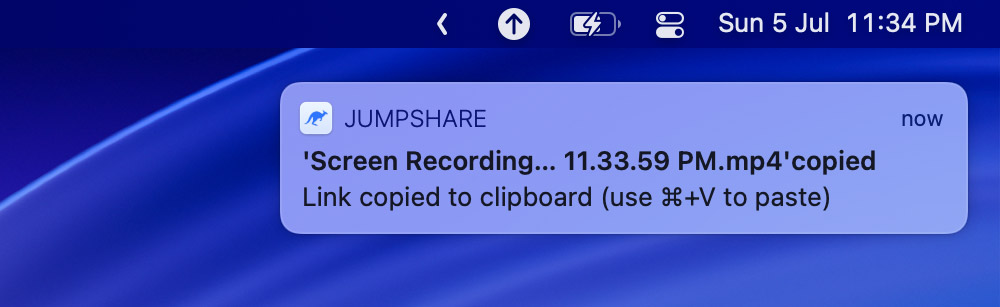
- Paste this link in the body of your email or hyperlink it to existing text in the body.
When recipients click the link, they’re taken to Jumpshare’s web-based video player, where they can watch the video instantly without downloading it and even leave timestamped feedback in the comments section.
Embed the Video’s Thumbnail in Your Email
Jumpshare lets you copy a clickable thumbnail for any uploaded video and paste it directly into your email. Just as with the link, when recipients click the thumbnail, they’re taken to Jumpshare’s online video player, where they can watch the video without downloading the file.
To embed a video’s thumbnail in your email:
- Launch the Jumpshare desktop app, then hover over any video in the list of uploads and click Share. Alternatively, you may open the Jumpshare web dashboard in your browser, right-click on your video, and select the Share option.
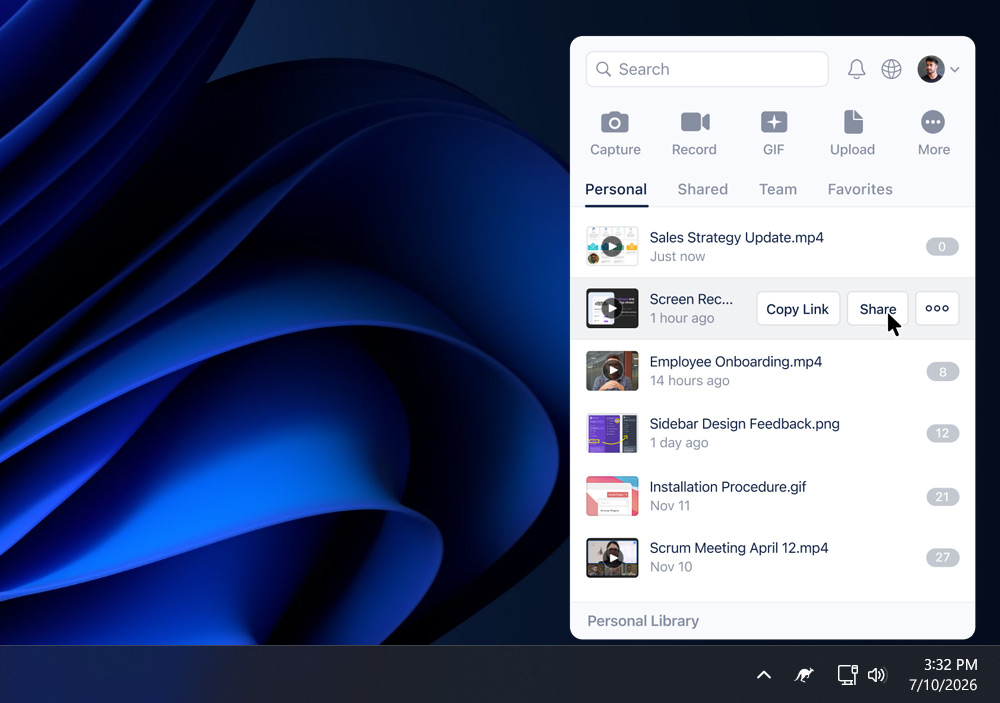
- Switch to the Embed tab.
- Click the Copy thumbnail button.
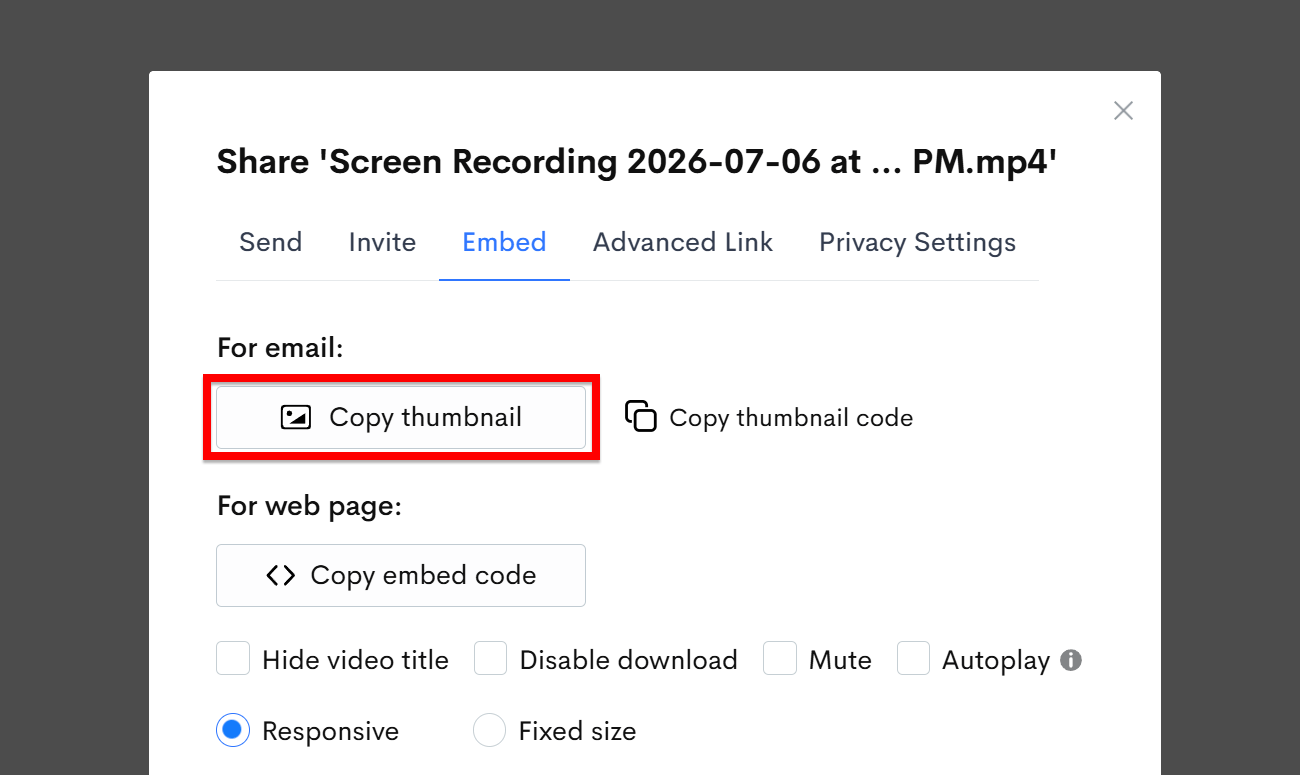
- Paste the copied thumbnail inside your email’s body.
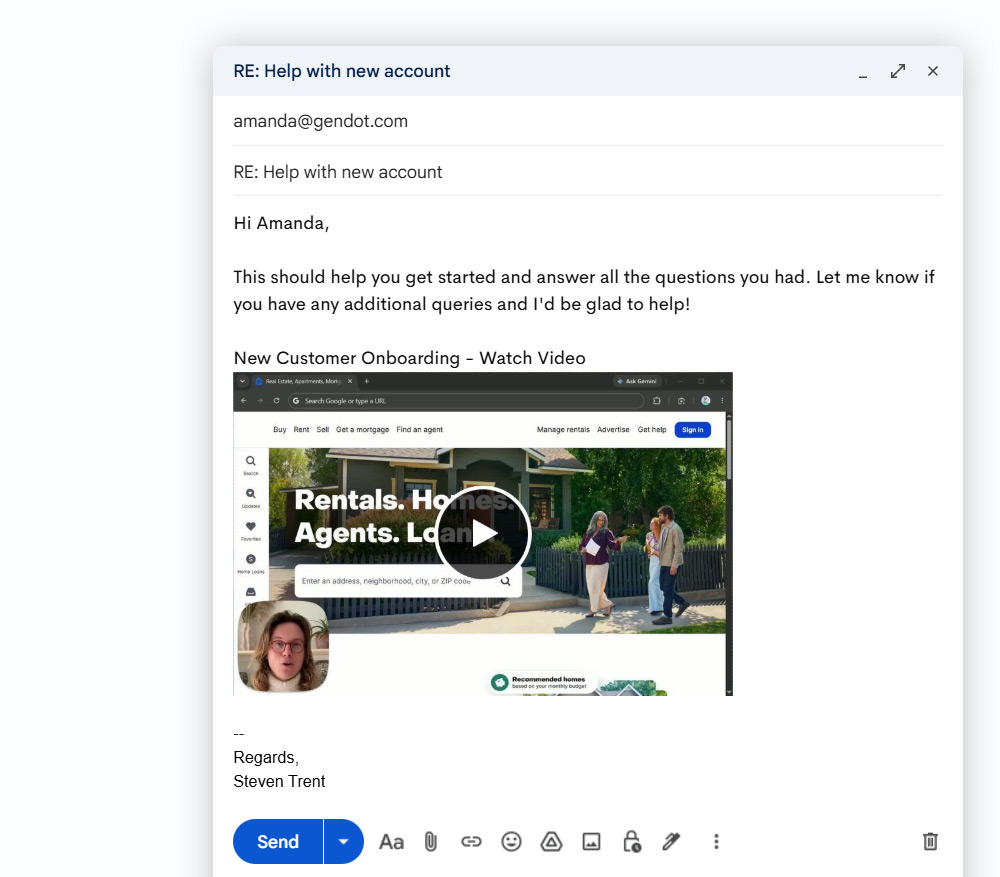
This adds the video’s title and a clickable preview to your email, complete with an overlaid play button to encourage clicks. This method is particularly useful for marketing and sales campaigns, where engagement is key. Jumpshare even allows you to customize this thumbnail. To do so, open the video from your Jumpshare library and select the Thumbnail option from the right sidebar.
Email the Video Directly From Jumpshare
This is probably the fastest method if your purpose is to email a video to a client or colleague quickly and conveniently.
Here’s how to email a video directly from within Jumpshare:
- Open the Jumpshare desktop app, then hover over any video in the uploads list and click the Share button. You can open the Jumpshare web dashboard in your browser, right-click on your video, and select Share.
- In the field at the top of the Send tab, enter one or more email addresses to which you want to send your video.
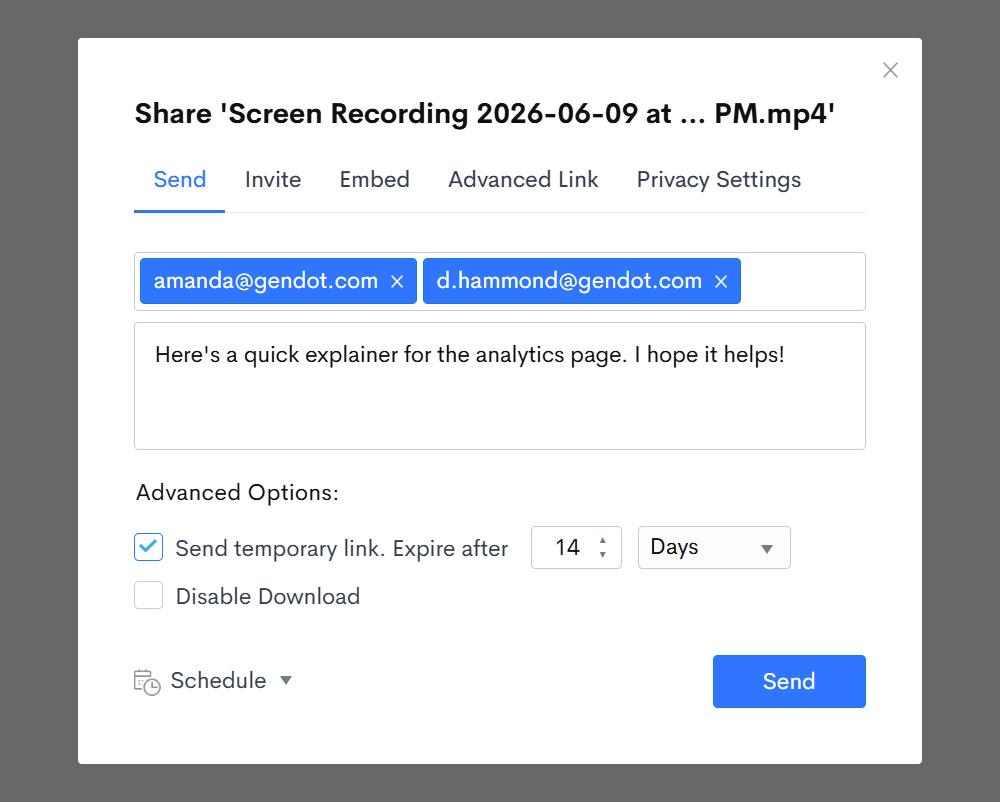
- Optional: Enter a message in the field below. This will appear below a thumbnail of your video.
- You may now set an expiration for your shared video, disable downloads, and schedule your email.
- Once all is set, click Send. The sent email includes your video’s title and thumbnail, followed by the optional message (if you added one) and a View Video button.
Jumpshare lets you personalize the emails you send. You can:
- Set a custom sender name and email
- Display your own logo in the header
- Choose a custom color for the links and CTA
- Enter a custom footer message, with links to your website or socials
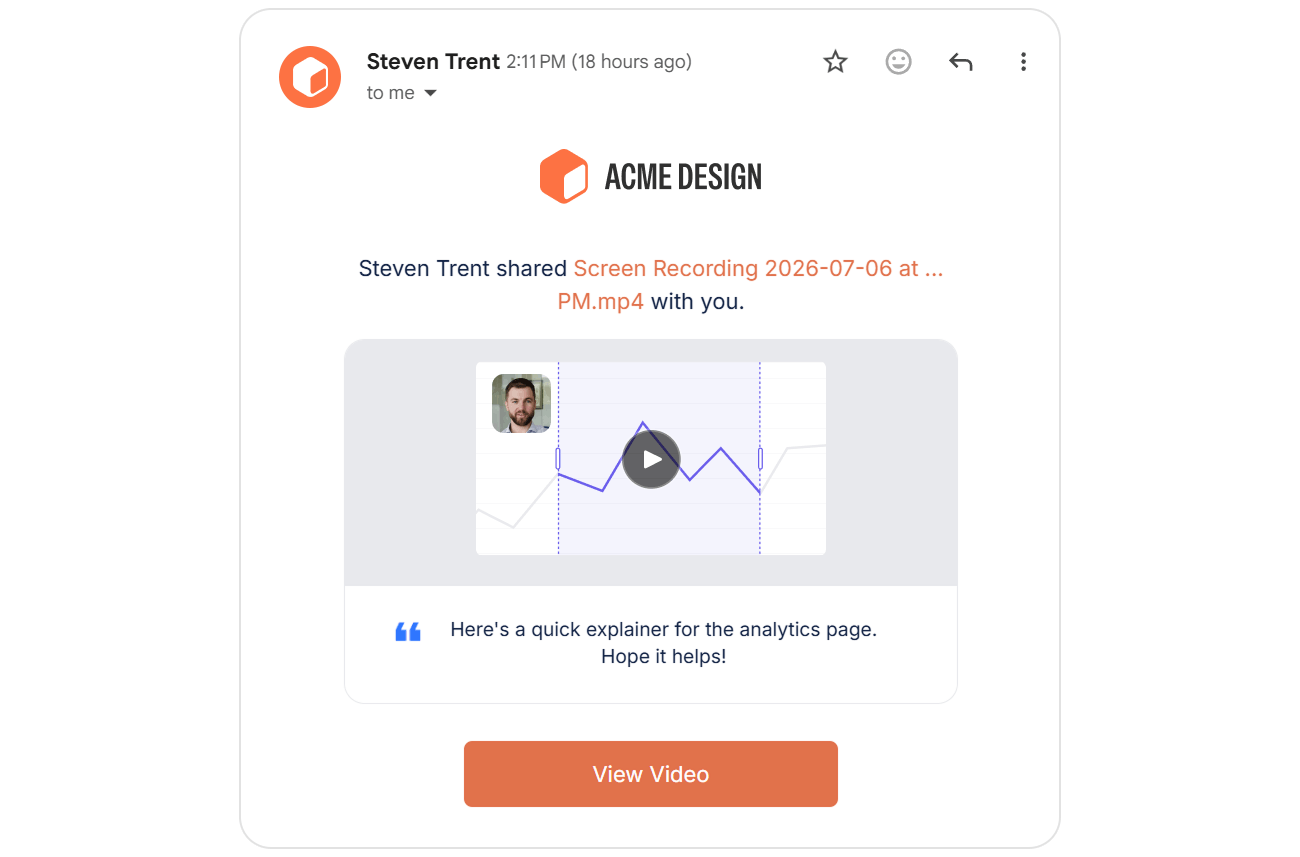
To customize sent emails, navigate to Settings > Workspace > Customize and scroll down to the Custom Branded Email section.
Why Use Jumpshare for Emailing Videos?
If video is at the core of your workflow, Jumpshare gives you far more control over how your videos are shared than conventional methods.
For marketing and sales professionals who rely on video for their email campaigns, Jumpshare is an all-encompassing solution that combines video creation, sharing, engagement, and analytics. In addition to sharing videos through email, it lets you:
- Record your screen, webcam, or both
- Generate AI-powered transcripts, captions, titles, and summaries
- Customize the video player with your branding
- Add call-to-action buttons to videos
- Embed lead capture forms into videos
- Set link expiry and disable downloads
- Lock sent videos with a password
- Track viewer engagement
- Collect feedback through timestamped and annotated comments
With these features, Jumpshare streamlines the entire process of sending videos through email. The result is a faster workflow for you and a better viewing experience for your recipients.