Screen Recording
 Screenshot Capture
 GIF Capture
 File Sharing & Collaboration
 Jumpshare AI
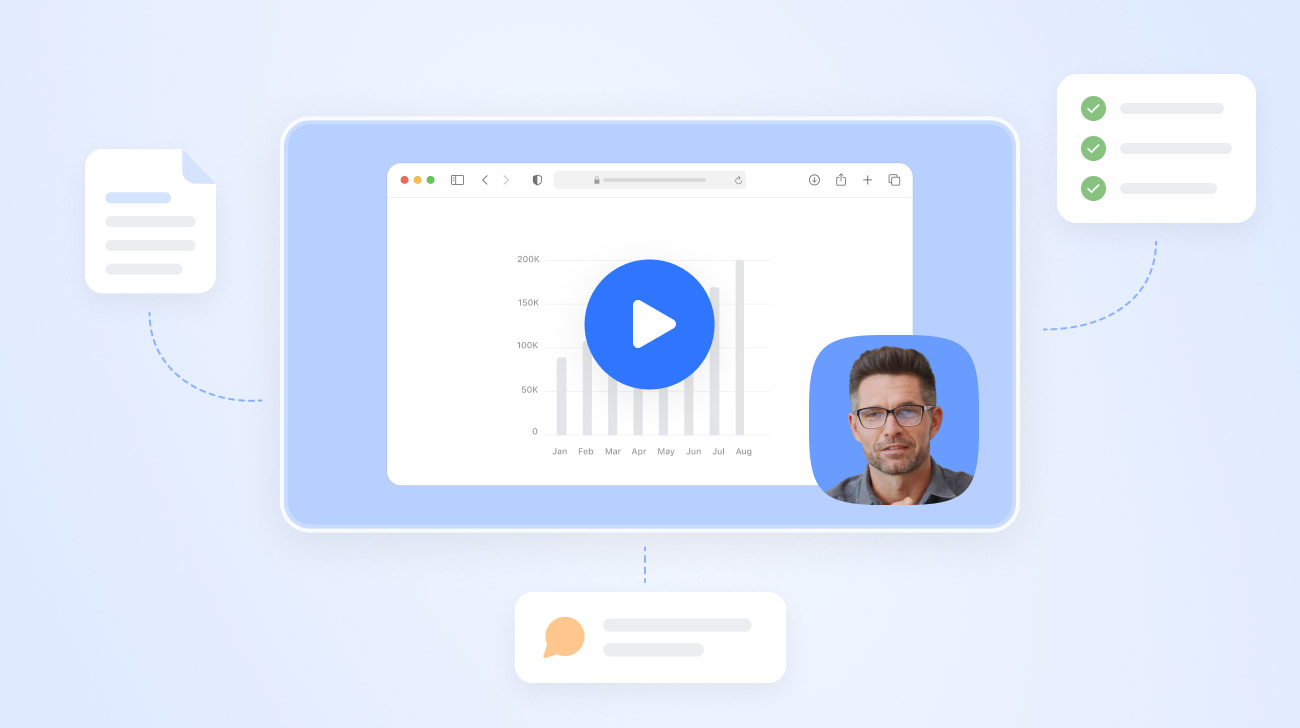
Asynchronous communication allows professionals to align with their team or clients on their own schedule rather than stopping what they’re doing to join a meeting, making collaboration easier on busy workdays and across time zones. While emails and chat messages work well for simple updates, video often communicates context far more effectively.
In this guide, we’ll look at why video has become one of the most valuable tools for async communication and how Jumpshare makes it effortless to create and share video messages.
What Is Async Communication?
Async communication is any form of communication that doesn’t require everyone to participate at the same time. Instead of expecting an immediate response, information is shared so recipients can review it at their convenience. Common examples include email, documentation, recorded presentations, comment threads, and screen recordings.
This flexibility makes async communication especially valuable for remote and distributed teams.
Why Use Video for Async Communication?
Some information is simply more difficult to deliver with text alone. Showing your screen while narrating your thought process can remove ambiguity and reduce the back-and-forth that is often part and parcel of text messages.
Using video for async communication offers several advantages:
- Fewer unnecessary meetings
- Clearer explanations with visual context
- Easier alignment across time zones
- A more personal experience than text messaging
Async video can be used across nearly every department, including design reviews, bug reports, product demos, customer support and onboarding, walkthroughs, and sales outreach. In fact, for a majority of these use cases, async video has become the preferred way to communicate or the first step in a broader discussion.
When to Choose Async Video Over Meetings
Meetings remain valuable for brainstorming, decision-making, complex discussions, and any discussions that require extensive back-and-forth. Routine conversations rarely require everyone to be available at the same time, however, and pulling multiple people into unnecessary meetings can cost teams hours of productive work each week.
Async video gives recipients the flexibility to consume information when it’s convenient while allowing senders to offer clarity that would otherwise require a live conversation. It also creates an on-demand resource that teammates can revisit instead of asking the same questions repeatedly.
How to Use Jumpshare for Async Video Communication
Jumpshare combines recording, sharing, collaboration, and feedback into a single platform, making it easier and more efficient to communicate with team members and clients and saving users 16+ hours per workweek.
Here’s how you can use Jumpshare to communicate asynchronously:
- Record Your Message
- Share Instantly
- Receive Collaborative Feedback
- Help Viewers Find What Interests Them
- Convert Videos to Action
1. Record Your Message
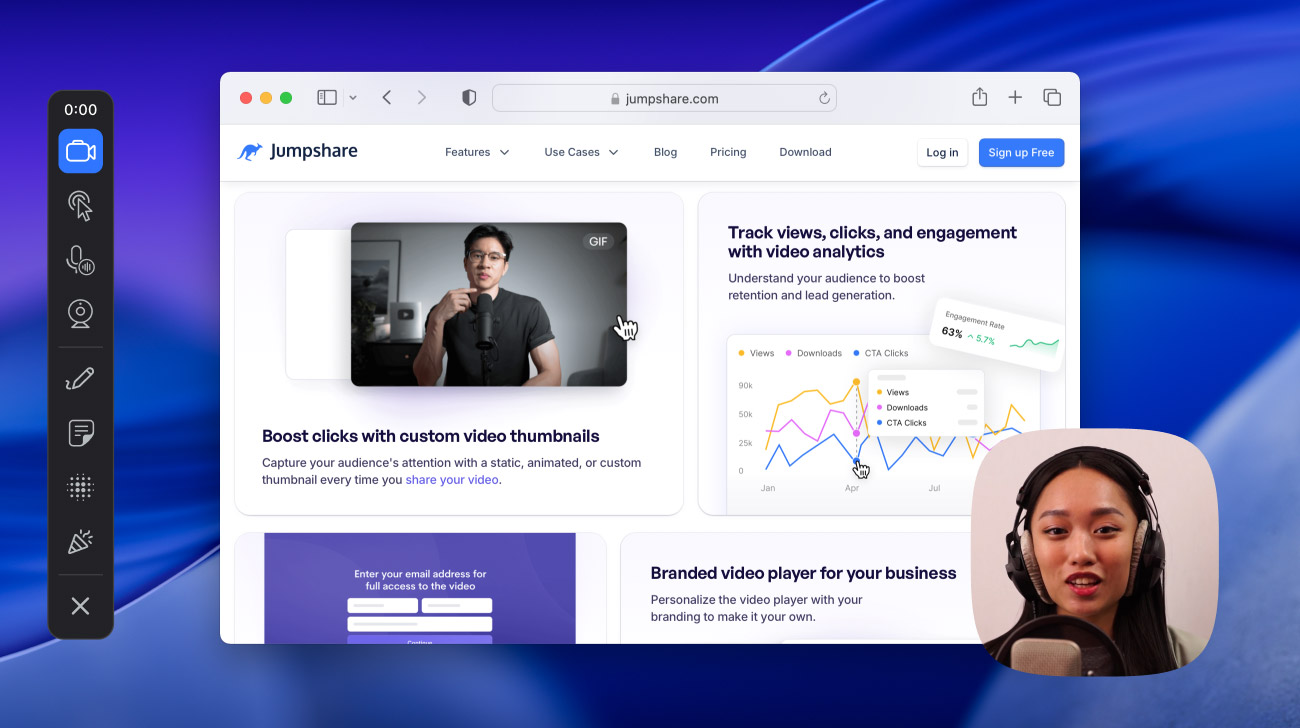
Jumpshare’s screen recorder lets you capture your screen, webcam, or both simultaneously. Record your entire screen, an area of the screen, or a specific window. Enable microphone and system audio recording, reposition your webcam, customize its appearance, swap or blur your camera background, enable click highlighting, and hide sensitive information on screen.
As you record, you can draw over your screen to call attention to important details. For longer recordings, you can organize your thoughts inside the built-in virtual teleprompter.
2. Share Instantly
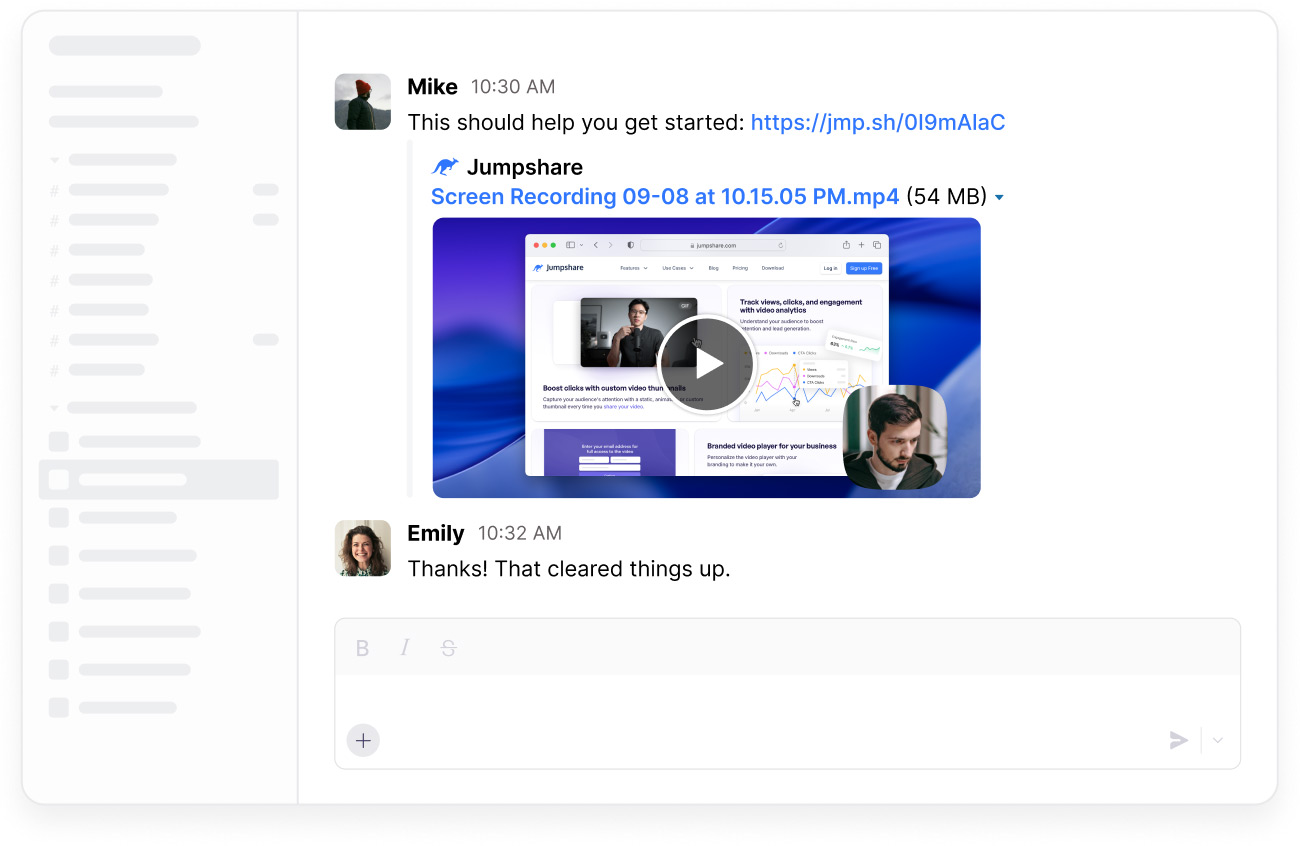
As soon as you finish recording, your video is automatically uploaded to your Jumpshare library, and a shareable link is copied to your clipboard. This link can then be shared through Slack, email, Microsoft Teams, or anywhere else your team communicates. You can also email the video directly from Jumpshare without leaving the app.
Jumpshare lets you extensively customize your sharing experience, controlling who gets to access your videos and how. You can:
- Edit link privacy
- Set an expiry date and time for each link
- Disable downloads
- Lock videos with a password
- Set videos to self-destruct after a set time
- Schedule emails
The videos you share open in Jumpshare’s online video player, allowing recipients to play them on any device without having to download or install anything.
3. Receive Collaborative Feedback
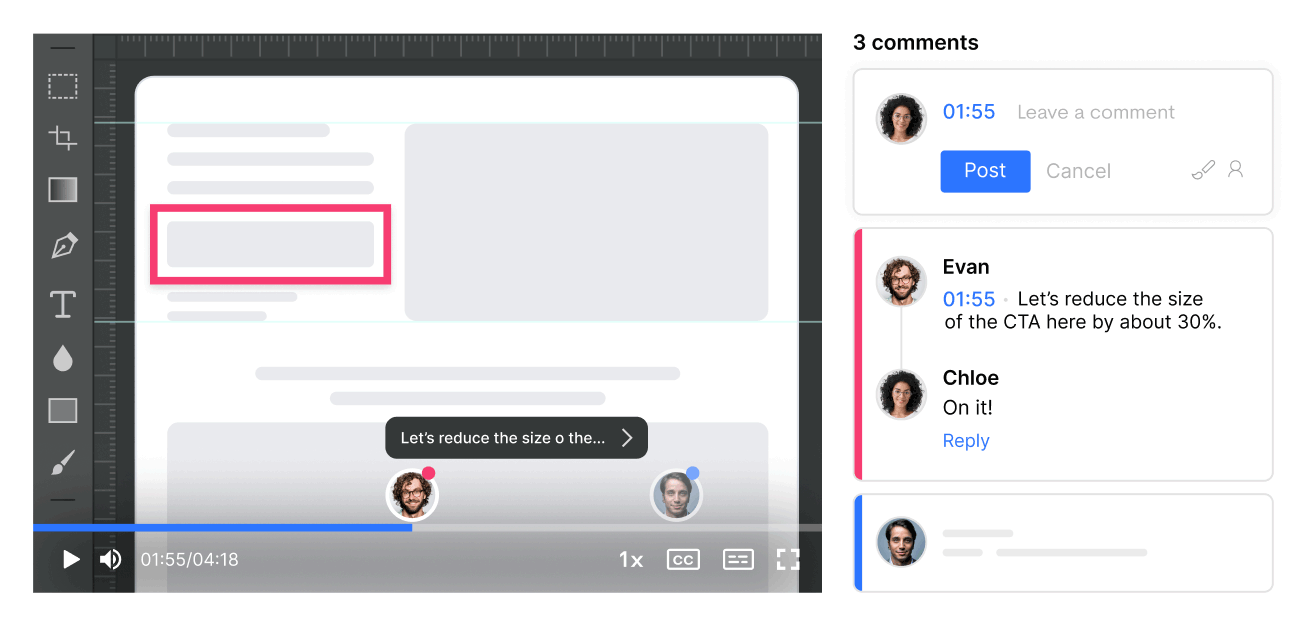
Instead of responding through email or moving the discussion to Slack, viewers can leave timestamped comments directly on the video. For further clarity, they can also annotate over the video, adding visual context to what their comment is referencing
Keeping feedback attached to the video itself in this manner makes conversations easier to follow.
4. Help Viewers Find What Interests Them
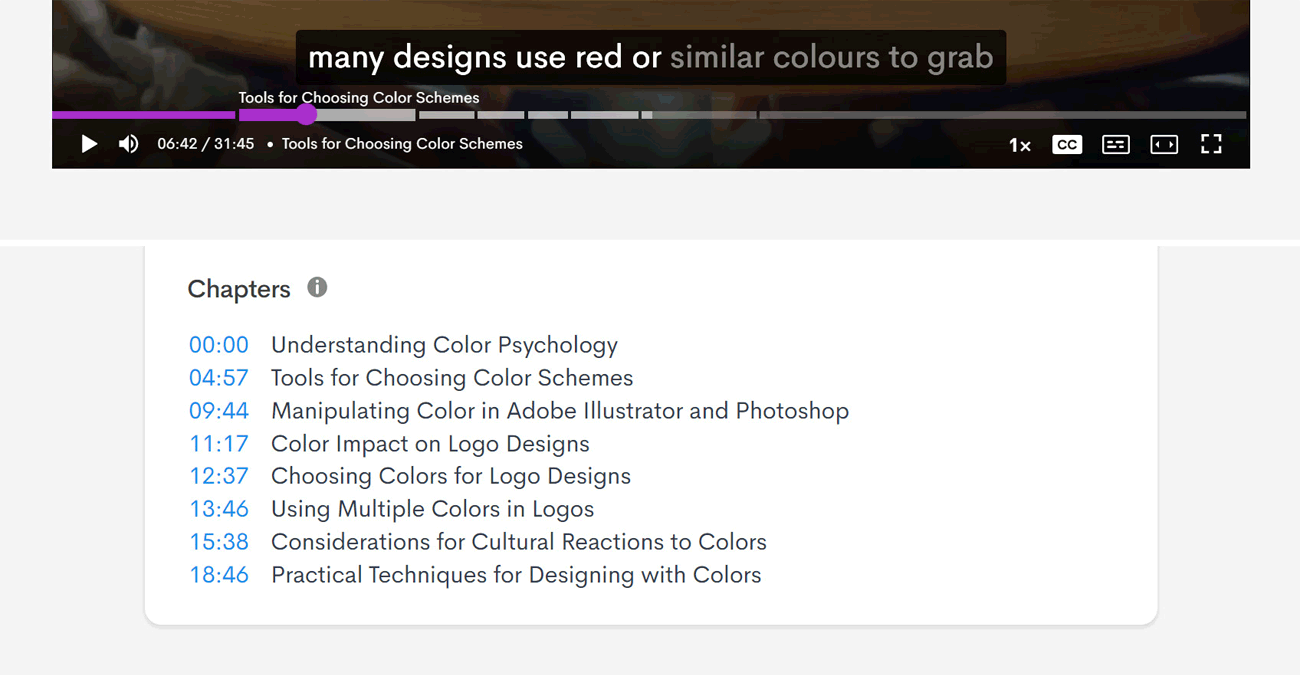
Longer recordings often cover multiple topics, many of which won’t be relevant to every viewer. Jumpshare automatically generates AI-powered chapters, transcripts, and summaries, allowing viewers to quickly get an overview of the discussion or jump directly to the sections most relevant to them.
5. Convert Videos to Action
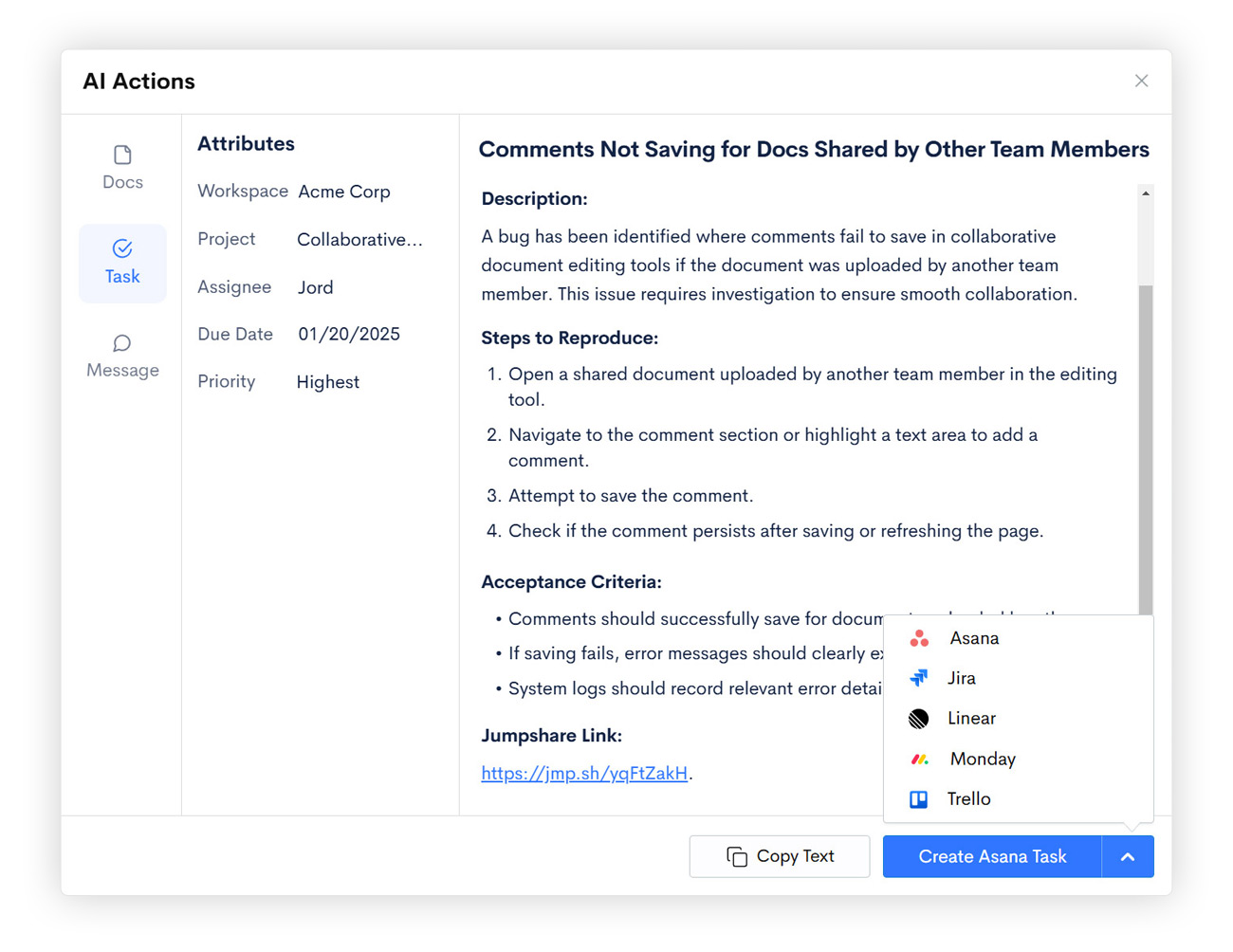
Jumpshare’s AI Actions feature can turn your videos into structured documents or assignable tasks with a single click, eliminating hours of manual work inside word processors and task management software. This makes it easier to document discussions, share meeting notes, and ensure important action items are promptly assigned to the right team members.
To use AI Actions, open a video from your Jumpshare library and select the AI Actions option from the right sidebar.
These features cover everything most teams need for an efficient async workflow, from recording and sharing to collecting feedback and turning discussions into action.