Screen Recording
 Screenshot Capture
 GIF Capture
 File Sharing & Collaboration
 Jumpshare AI

Creating a great video is only the first step. To turn viewers into customers, subscribers, or leads, you need to point them in the right direction. That’s where a CTA (call-to-action) comes in. Adding a CTA directly to your video lets you guide viewers toward a specific action – visiting a website, booking an appointment, or downloading a resource – while they’re still engaged with your content.
In this guide, we’ll explain why calls to action matter and show you how to add customizable CTA buttons to your videos using Jumpshare.
What Is a Video CTA (Call-to-Action)?
A video CTA (call-to-action) is a button, link, or message that encourages viewers to take a specific action before, during, or after a video. It acts as a funnel to a landing page or resource referenced in the video.
Unlike links placed in a video description or webpage, an embedded CTA becomes part of the viewing experience, making it more likely to convert. Instead of hoping viewers know what to do next, you present the next step at exactly the right moment, where it’s impossible to miss.
Why Add a CTA to Your Videos?
A video without a call-to-action leaves viewers to decide what to do next on their own. By adding a CTA directly to the viewing experience, you can capitalize on their interest while it’s still fresh, making them much more likely to take the next step.
Embedding a CTA in your videos can help you:
- Increase clicks by making the next action easily accessible
- Drive more traffic to product pages, booking pages, or signup forms
- Reuse the same video for different campaigns by updating the CTA destination
When Should You Use a Video CTA?
CTA buttons can be used across almost any type of marketing, business, or educational video. Here are some common examples:
- Product Demos: Invite viewers to start a free trial or book a demo.
- Product Announcements: Send viewers to a feature page.
- Sales Presentations: Ask prospects to schedule a meeting or contact your sales team.
- Tutorials or Guides: Link to relevant documentation, additional resources, or the next lesson.
- Customer Onboarding: Direct new customers to your support center.
- Webinars: Promote upcoming events or downloadable resources.
How to Add a CTA Button to a Video with Jumpshare
Adding a CTA button to a video in Jumpshare only takes a few minutes:
- Upload a video to your Jumpshare library, or record a new one using the Jumpshare screen recorder.
- Open the video in your browser from the Jumpshare web dashboard or by selecting it from the list of uploads shown in the desktop app.
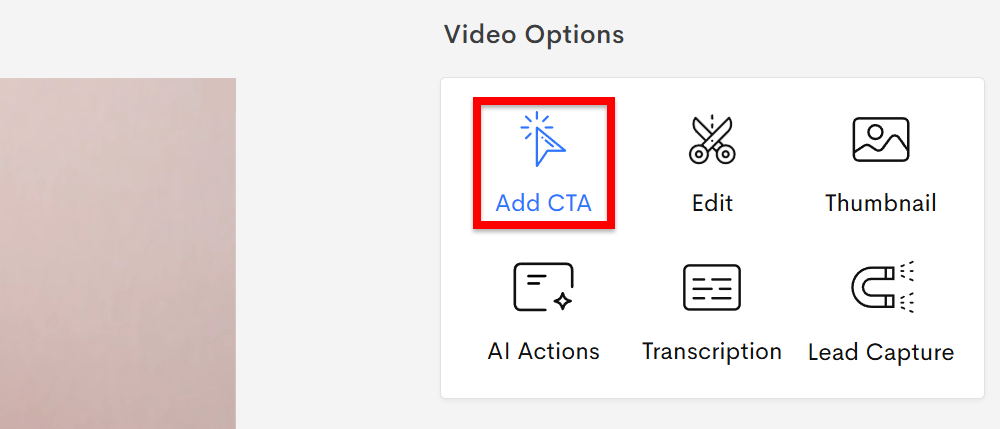
- Click on the Add CTA option in the file viewer’s right sidebar.
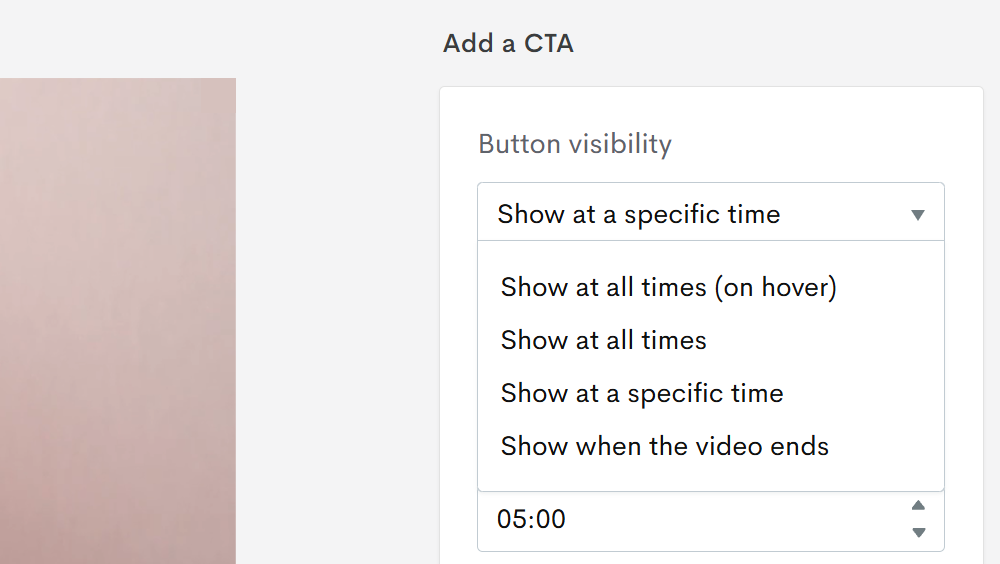
- Choose when the button appears over the video – at all times, any time the user hovers over the video, at a specific time in the video, or when the video ends.
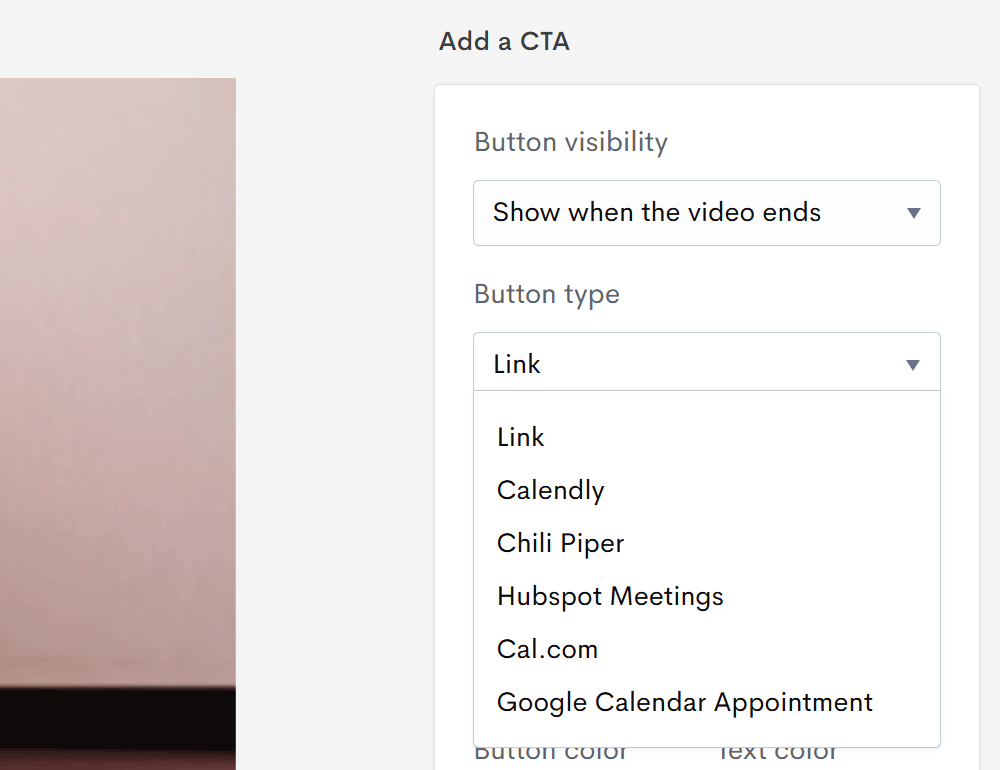
- Select your CTA button type. You can choose to enter a simple link or an appointment scheduling service like Calendly, Chili Piper, HubSpot Meetings, Cal.com, or Google Calendar Appointment.
- Enter or paste the button link. This is the page (or appointment scheduler) the button will open when it is clicked.
- Customize the appearance of the button – choose the button color, text color, button location (one of the four corners of the video), and button style (shape).
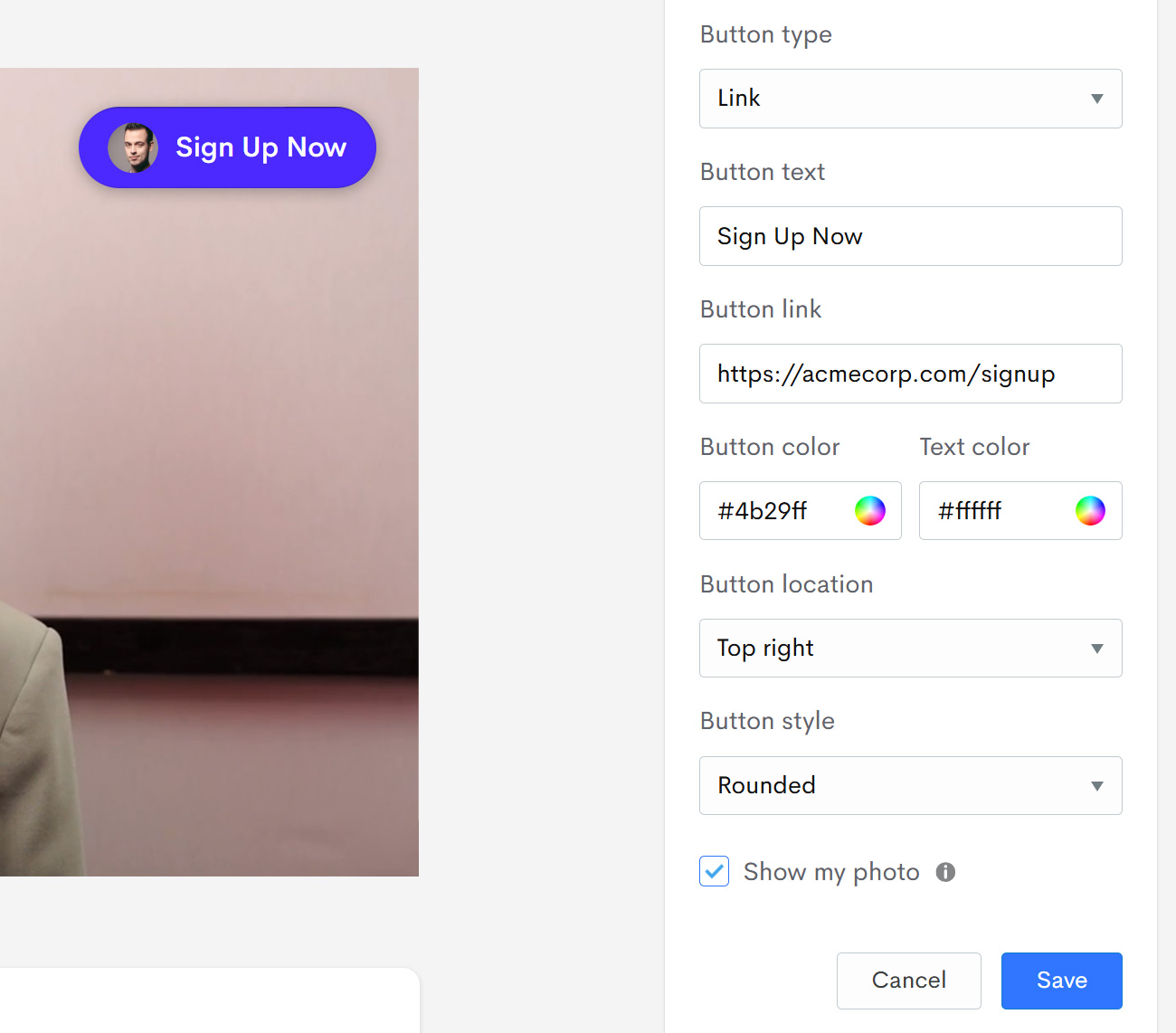
- Choose whether you’d like to have your Jumpshare profile photo displayed within the CTA button.
- Hit Save to add the CTA button to your video.

Why Use Jumpshare for Video CTAs?
Jumpshare seamlessly combines everything you need to create and share business videos, add interactive elements, and track results. Apart from adding CTA buttons to videos, you can also:
- Record your screen, webcam, or both at the same time
- Share videos anywhere in seconds with a link
- Generate AI-powered transcriptions, captions, titles, and summaries
- Customize the video player’s color scheme and add your own logo
- Embed lead generation forms into videos
- Monitor video performance with engagement insights
- Receive viewer feedback via timestamped and annotated comments
Together, these aim to offer a one-stop shop for every stage of your sales, marketing, and customer support workflows.