It’s now easier to create screen recordings that match your brand. The latest update to our Mac app features a completely redesigned, more powerful Webcam Effects panel, bringing all of your webcam customization options under one roof.
Alongside a cleaner interface, you’ll find a brand new Cutout style, new camera frames and glow effects, a new profile photo overlay, and improvements to existing customization features.
Make Your Camera Pop with Frames

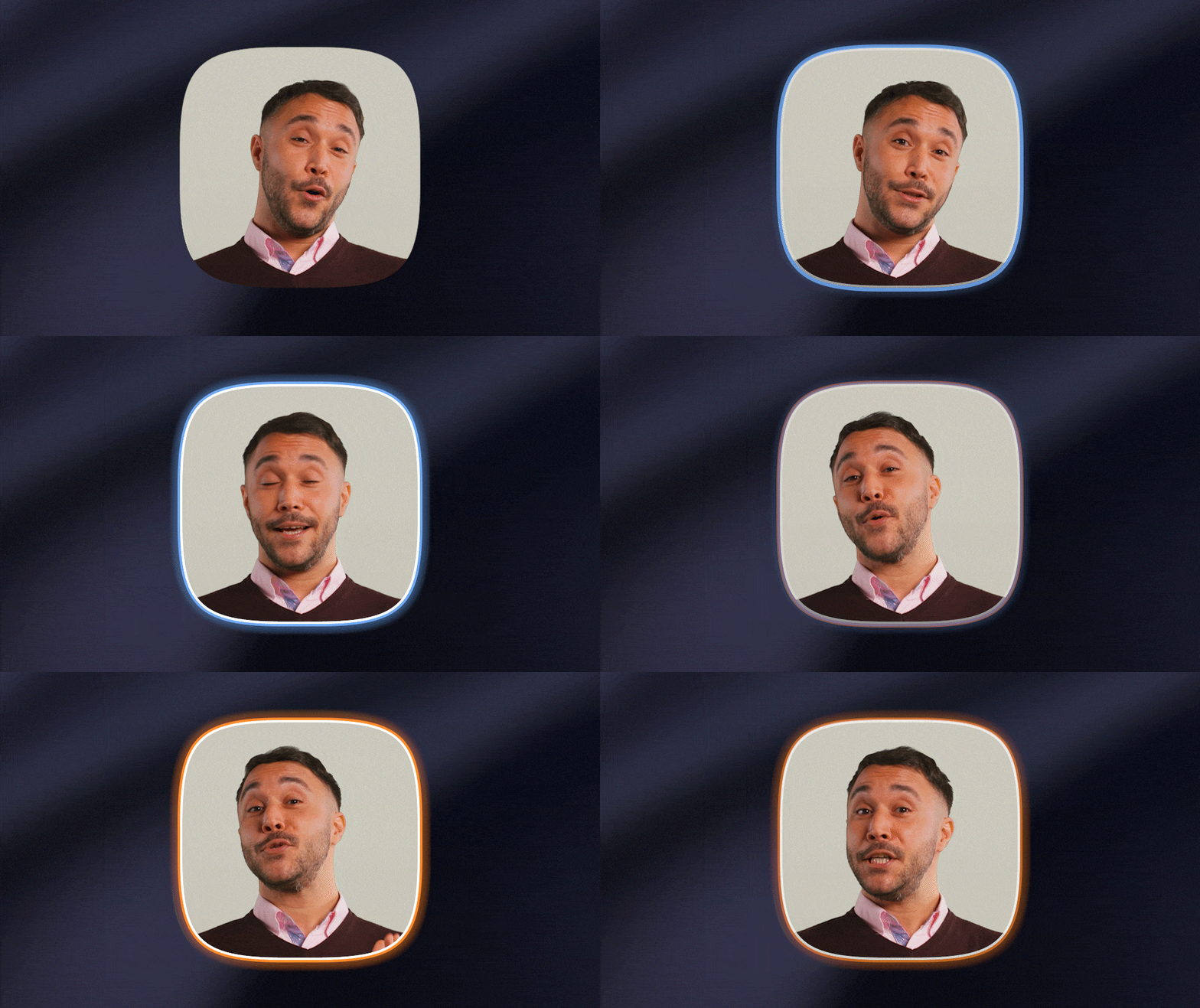
Apply a border to your webcam overlay for added contrast. Choose a color that matches your brand or complements the content you’re recording. For an even bolder look, enable the new Glow Effect to add a soft illuminated edge around your frame.
Go Frameless with the New Cutout Style

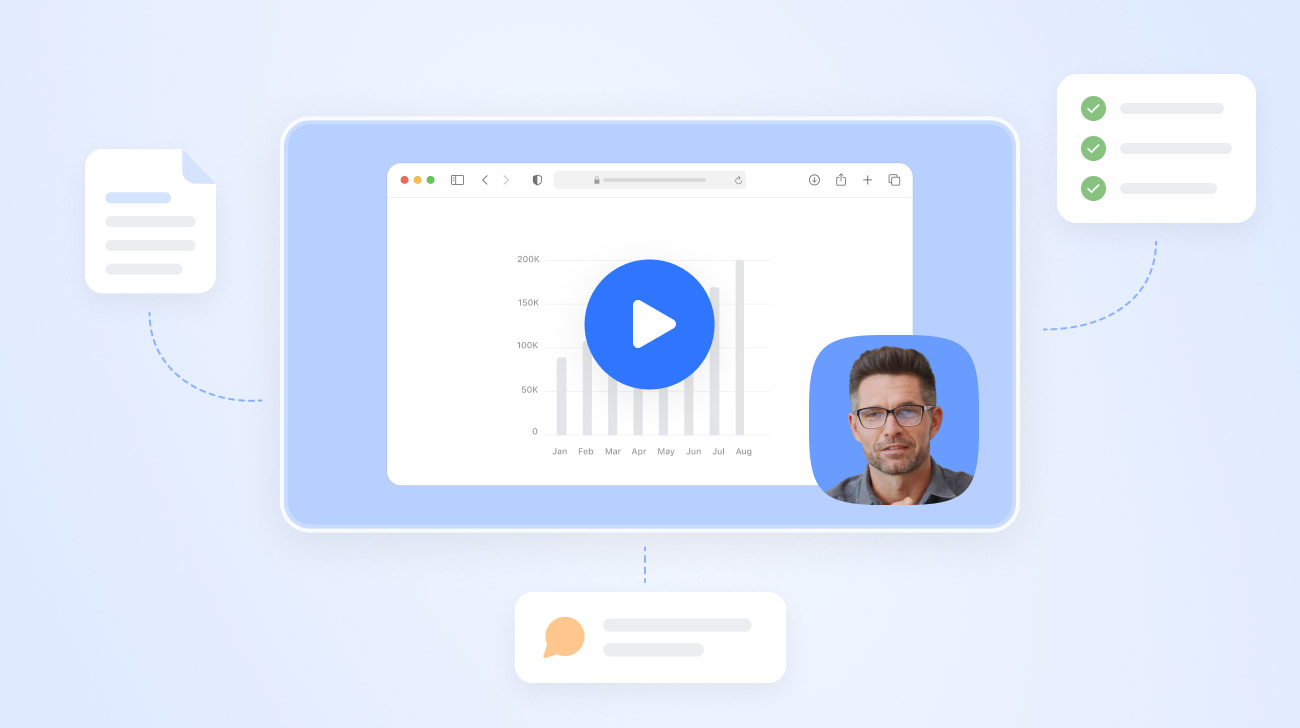
The new Cutout shape removes the traditional webcam frame and background, creating a more immersive look that blends into your recording. Because only you remain on screen, you can make your camera overlay larger without covering more of your content.
Want a little more contrast? Apply one of the new webcam frames to add a border around your silhouette while preserving the frameless style.
Stay Present, Even When Your Camera Is Off

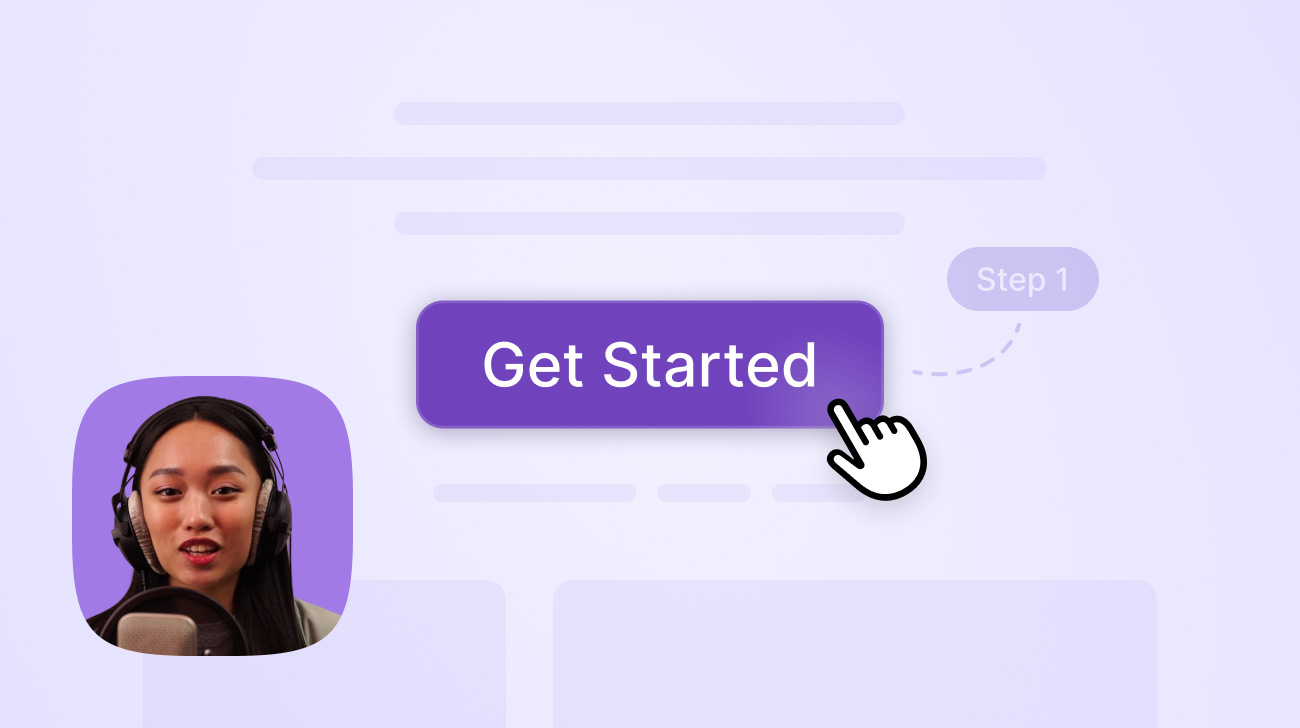
Prefer not to appear on camera? Replace the live webcam overlay with your profile photo to add a personal touch to your recordings without actually being on screen. Use your existing Jumpshare profile picture or upload another directly from the Webcam Effects panel. You can even use it to display your company logo.
It’s ideal for presentations and tutorials where you want viewers to focus on your content while still putting a face to the video. The feature can be enabled from under the Shape tab.
Everything in One Place

With the new Webcam Effects panel, all camera customization options are now available in one place. The panel divides new and existing features into four categories:
- Shape: Choose from six webcam shapes – Circle, Squircle, Cutout, Landscape, Portrait, and Stage.
- Frame: Add a standard or glowing border to your webcam in a color of your choice.
- Background: Blur or swap your camera background. Pick from a selection of built-in background images and solid colors, or add your own.
- Settings: Flip your camera, lock it to the corners of your recording area, enable the new and improved studio lighting, and apply the face touch-up filter.
To access the new panel, hover over the camera, then click More (…) followed by the Effects (✨) icon.
The update is available today on the Jumpshare macOS app (coming soon to Windows!). Got feedback for us? Feel free to reach out through our support portal.
Keep creating! 🎥
Screen Recording
Screenshot Capture
GIF Capture
File Sharing & Collaboration
Jumpshare AI