Screen Recording
 Screenshot Capture
 GIF Capture
 File Sharing & Collaboration
 Jumpshare AI
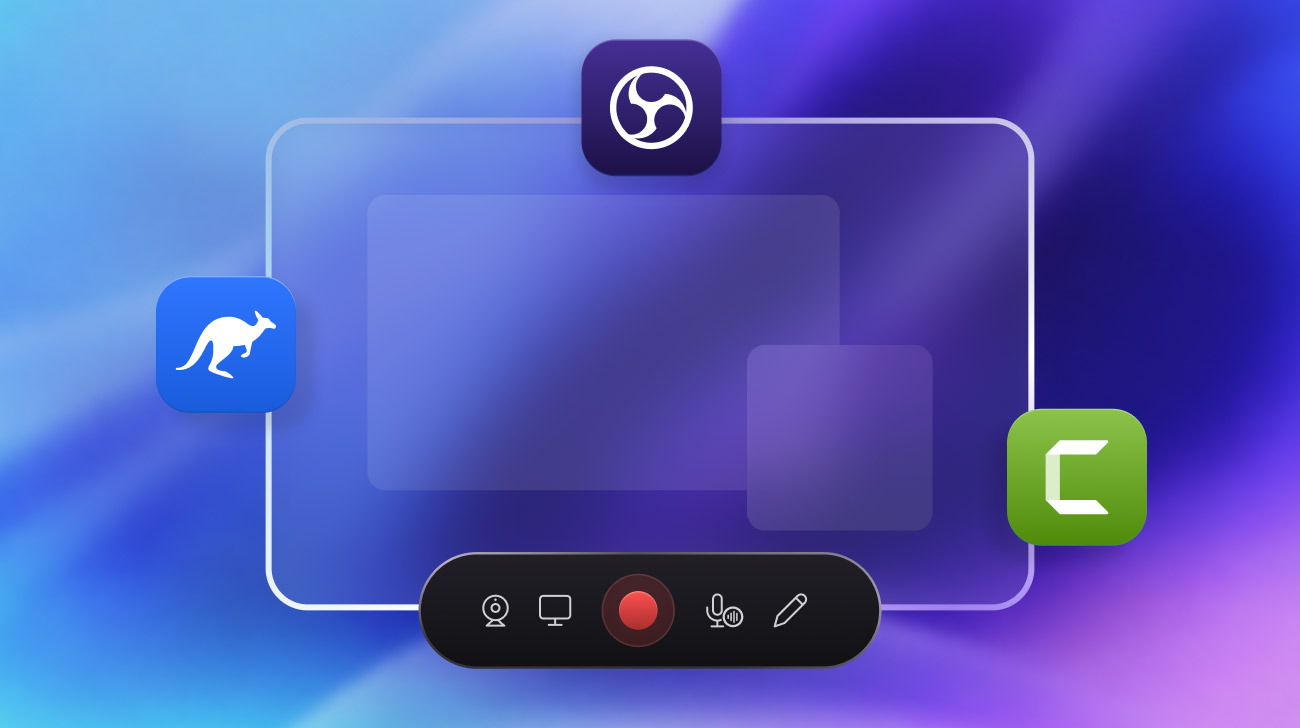
Whether you’re creating tutorials, recording meetings, or sharing quick feedback with teammates, the right screen recorder can save time and improve communication. All major operating systems now come packed with native screen recording solutions, though the bare-bones nature of these keeps the third-party market alive and flourishing.
Modern screen recording apps go far beyond simply capturing what you see on your display. They now offer annotation tools, cloud sharing, AI features, and collaboration workflows.
Here are six of the best screen recording software available for Windows and Mac.
The 6 Best Screen Recorders on Windows and Mac
- Jumpshare – Best for fast recording, sharing, and collaboration
- OBS Studio – Best for studio-grade recording and live streaming
- Loom – Best for quick video messaging
- Camtasia – Best for multi-track recording and video editing
- Screen Studio – Best for beautiful product demos
- Bandicam -Best for high-performance screen and gameplay recording
Jumpshare
Best for fast recording, sharing, and collaboration
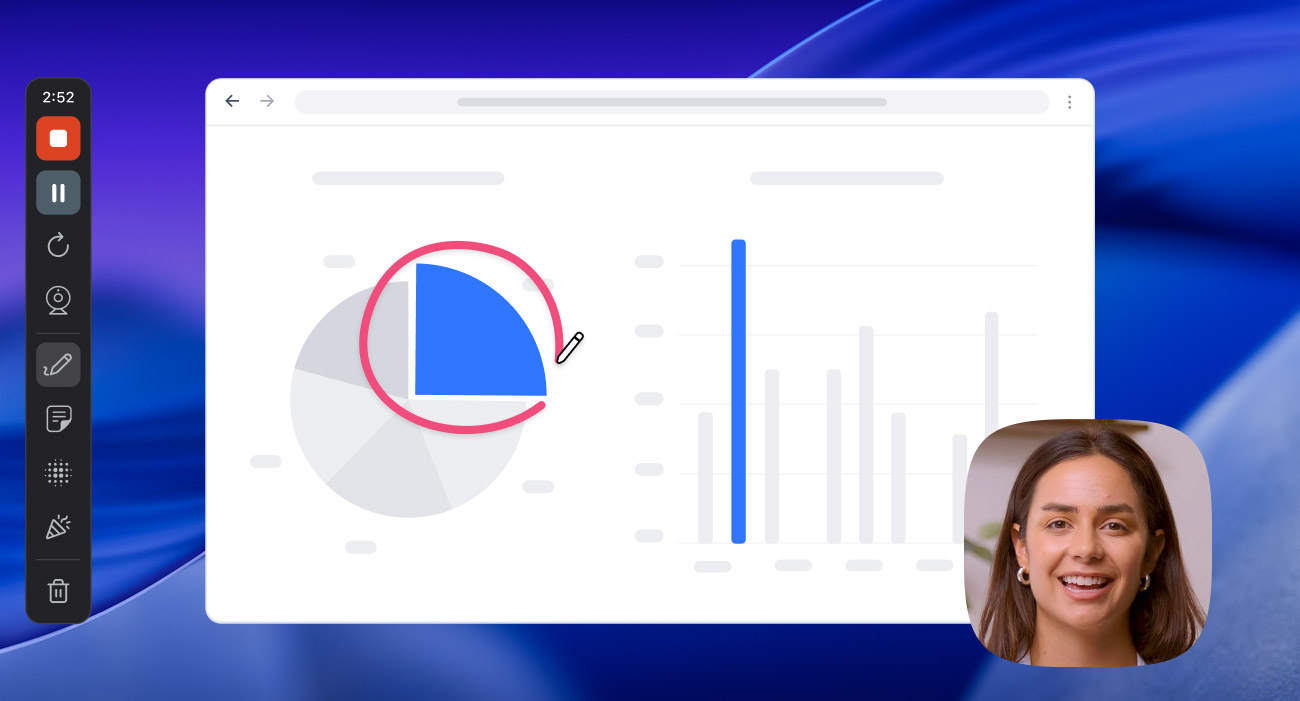
Jumpshare combines screen recording with screenshot and GIF capture, offering you a solution for all your screen capture needs in one app. Its strength lies in speed and ease of use.
It takes no more than a couple of clicks to start recording your screen, webcam, or both simultaneously. This quick workflow, along with live annotation, click highlighting, a blur tool, and a virtual teleprompter, makes Jumpshare ideal for recording video messages, product demos, tutorials, and bug reports.
Recordings are automatically uploaded to the cloud and ready to share with a link within seconds of you hitting stop. The app also keeps a copy of recent recordings on your system, allowing you to drag and drop them into local projects.
Pros
- Extremely easy to set up and use
- Real-time uploads to a dedicated cloud library
- Instant shareable links
- AI-powered transcription, captions, titles, and summaries
- Quick web-based video editing
- Available on both Windows and Mac
Cons
- Advanced collaboration features require a paid plan
OBS Studio
Best for studio-grade recording and live streaming
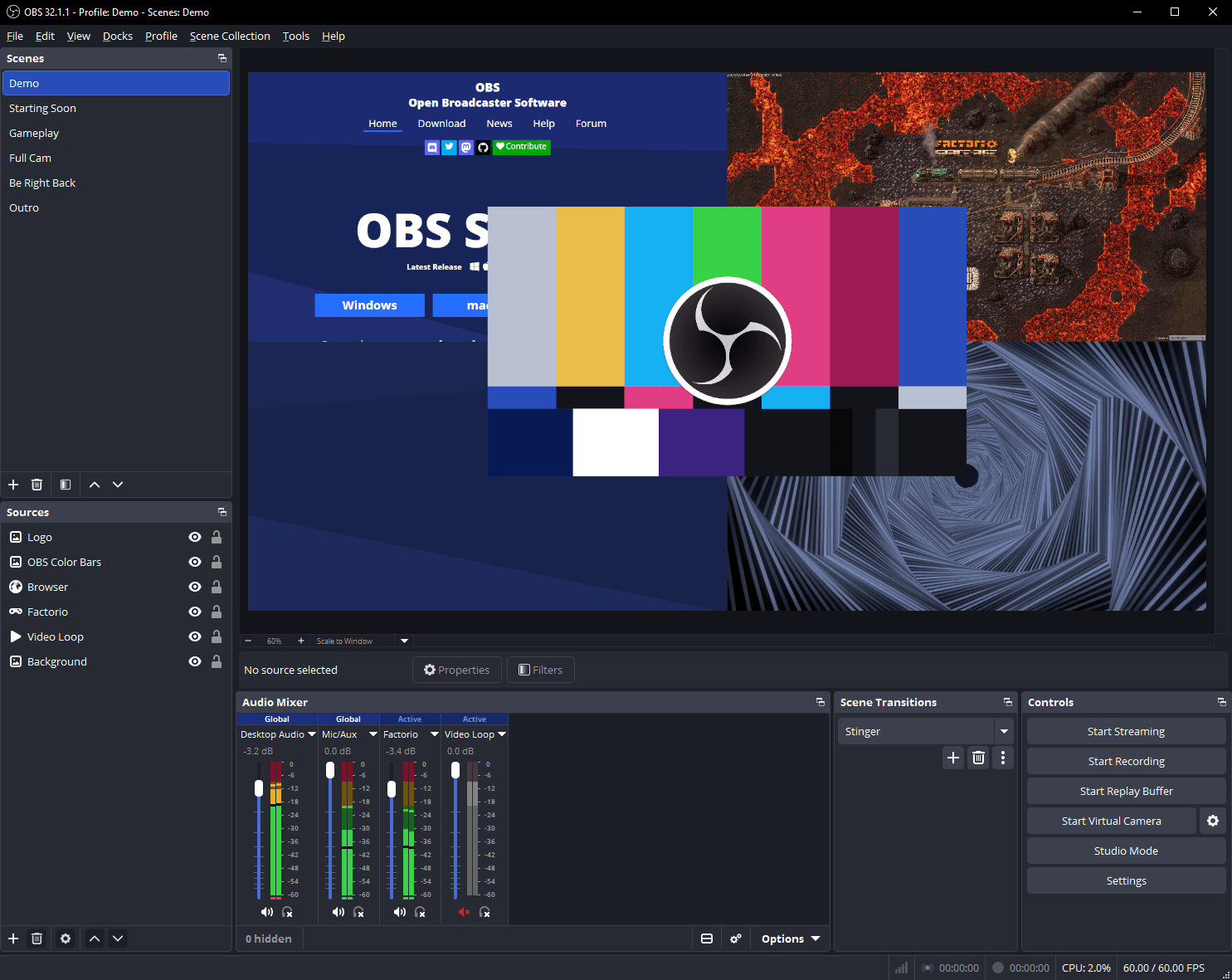
OBS Studio is the gold standard for creators who need studio-grade recording and streaming capabilities. It offers advanced scene management, multiple audio sources, custom transitions, extensive configuration options, and a vast market of versatile third-party plugins.
Despite being completely free, OBS can produce professional-quality recordings suitable for YouTube videos, online courses, webinars, and live broadcasts.
If you can spare the time to configure it and familiarize yourself with its more complicated interface, there are few solutions as comprehensive as OBS.
Pros
- Completely free and open source
- Highly customizable
- Countless third-party plugins
- Powerful streaming features
- Available on both Windows and Mac
Cons
- Steeper learning curve
- No dedicated cloud library or fast sharing
Loom
Best for quick video messaging
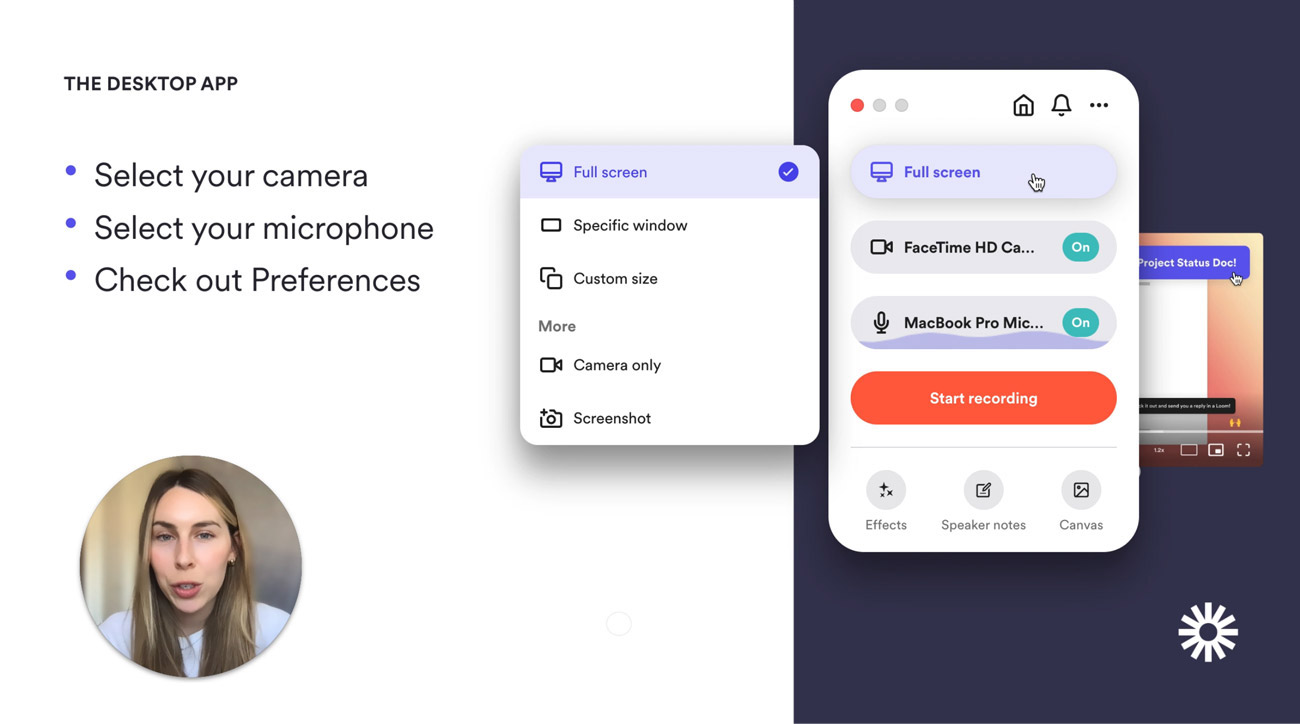
Loom popularized asynchronous video messaging in the workplace. It allows users to record their screen and camera, instantly upload the recording, and share it with colleagues through a link.
Its cloud-based workflow, combined with AI-powered post-processing and advanced collaboration features, makes it one of the easiest ways to deliver updates, explain concepts, provide feedback, and avoid unnecessary meetings.
Pros
- Very easy to use
- Real-time uploads to a dedicated cloud library
- Instant shareable links
- Powerful AI post-processing
- Quick web-based video editing
- Available on both Windows and Mac
Cons
- Advanced collaboration features require a paid plan
- Relatively more expensive paid plans
Camtasia
Best for multi-track recording and video editing
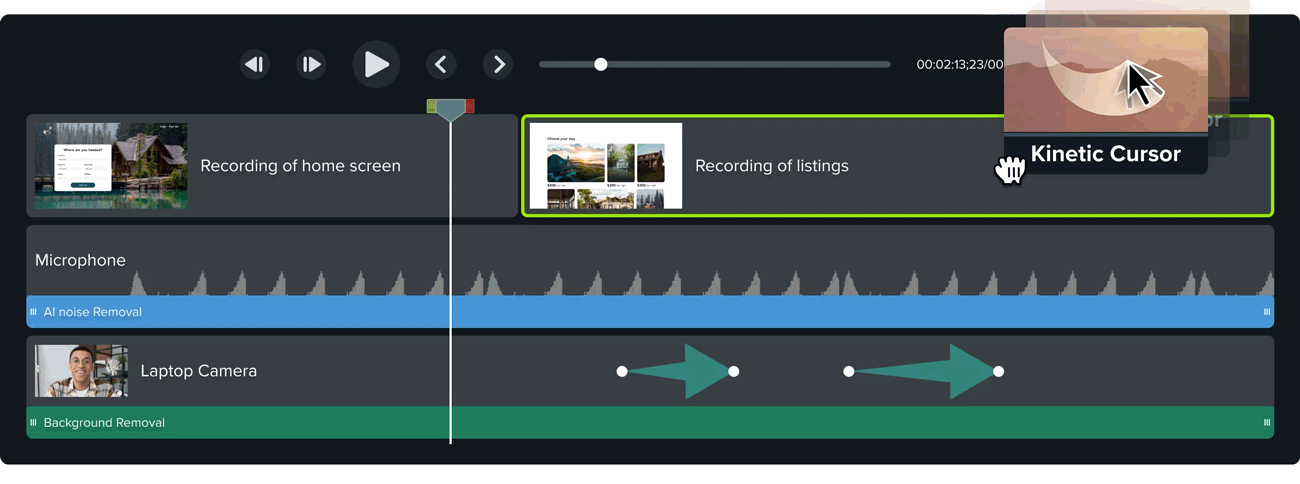
Camtasia combines screen recording with a professional-grade video editor, making it a popular choice among educators, trainers, and businesses. The app records the camera and screen onto separate tracks that can then be edited separately within its multi-layer editor. Users can also enhance their recording with animations, callouts, effects, quizzes, and transitions.
While Camtasia’s desktop app excels at editing, it focuses primarily on local content creation rather than quick sharing or advanced cloud-based collaboration. The advanced editing features come at a price, too, with the app’s watermark-free tier being quite a bit more expensive than the other apps on this list.
Pros
- Multi-track recording
- Powerful editing capabilities
- Large royalty-free asset library
- Excellent for tutorials and training material
- Available on both Windows and Mac
Cons
- Significantly more expensive than other apps on this list
- No dedicated cloud library or fast sharing
- Limited collaboration features via a separate online app
Screen Studio
Best for beautiful product demos
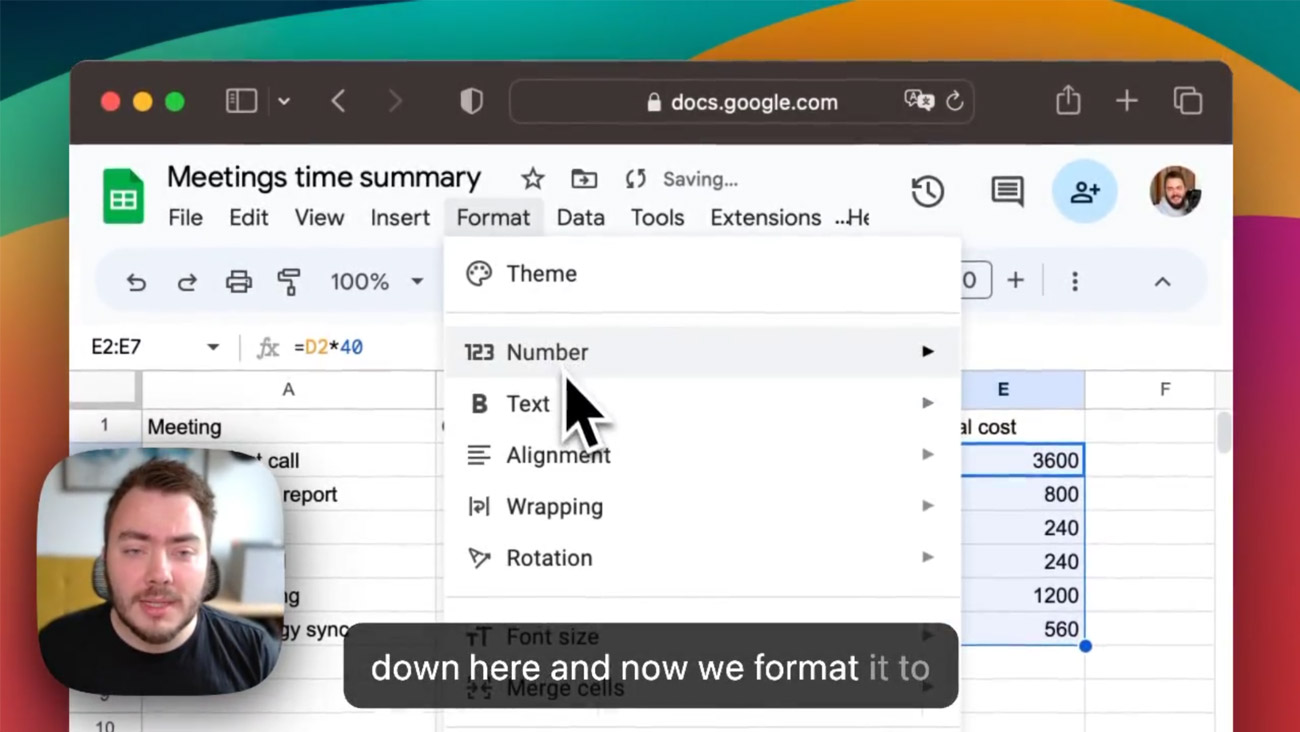
Screen Studio has become a favorite among software companies, marketers, educators, and creators thanks to its ability to automatically produce polished recordings with cursor tracking, zoom effects, and smooth animations.
It focuses on making recordings look professional with minimal effort in post.
Pros
- Stunning visual effects
- Modern and polished output
- Little editing required
- Excellent for product demos
Cons
- Mac only
- No free plan
- No dedicated cloud library
- Manual sharing for finished videos
- Limited collaboration features
Bandicam
Best for high-performance screen and gameplay recording
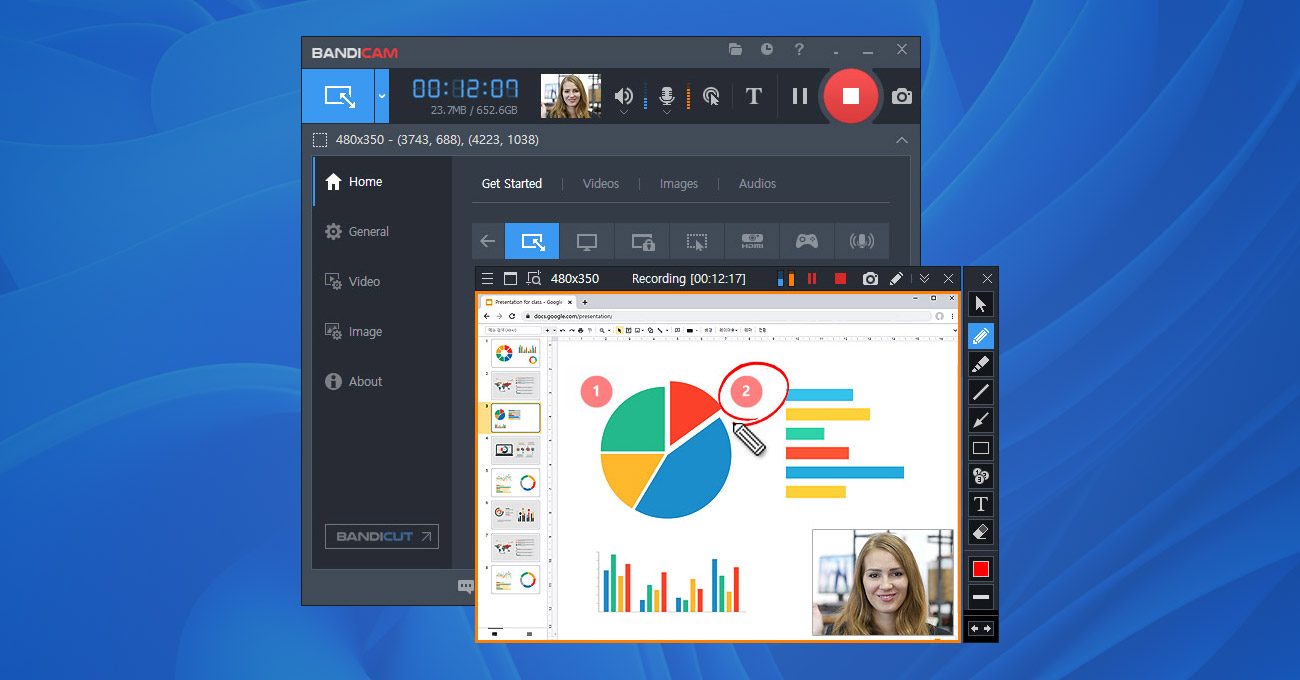
Bandicam is one of the oldest and most recognizable names in the screen recording space. It’s a lightweight screen recorder known for producing high-quality recordings with minimal performance impact. This has made it particularly popular among gamers, though it is equally viable for educators and professionals.
The software offers screen recording with webcam overlays, live annotation, click highlighting, and hardware acceleration for smooth performance. Another standout feature is its built-in recording scheduler, which allows users to automate recordings on a daily or weekly basis.
Pros
- Low system resource usage
- Hardware-accelerated recording
- Great for gameplay capture
- Scheduled recordings
- Available on both Windows and Mac
Cons
- No dedicated cloud library
- Sharing requires manual uploads
- Free version adds a watermark to each recording
Choosing the Right Screen Recorder
The best screen recorder ultimately depends on how you plan to use it. If you need advanced production tools, OBS Studio and Camtasia are both excellent choices. If your focus is polished product demos and tutorials, Screen Studio stands out, while Bandicam remains a strong option for high-performance recording and gameplay capture. Loom excels at seamless video messaging with its cloud-based workflow.
If you’re looking for a balance of simplicity, powerful recording features, and instant sharing, Jumpshare is one of the most well-rounded options available. It combines screen recording, screenshots, GIF capture, cloud-based sharing, AI-powered enhancements, and collaboration tools into a single app, making it easy to create and share content without juggling multiple tools.
Have a different use case in mind? With all of these apps offering either a free plan or a free trial, you can try them out yourself to see which one best meets your unique requirements.